

Add words to your dictionary
EkLine’s spell-check rule flags words it doesn’t recognize. That’s useful for catching typos, but it also flags product names, acronyms, and domain jargon that are spelled correctly for your team. Add those words to your dictionary once, and EkLine treats them as valid everywhere you review.
Your dictionary lives in your EkLine account, so it applies to every review surface connected to your token — the CLI, CI pipelines, the VS Code extension, and the PR bot.
Before you start
Section titled “Before you start”You need:
- An EkLine account with access to the EkLine Dashboard.
- One review surface set up to test the result: the CLI, a CI integration, or the VS Code extension.
Step 1: Open your dictionary
Section titled “Step 1: Open your dictionary”-
Go to the EkLine Dashboard.
-
Open Dictionary at ekline.io/dictionary.
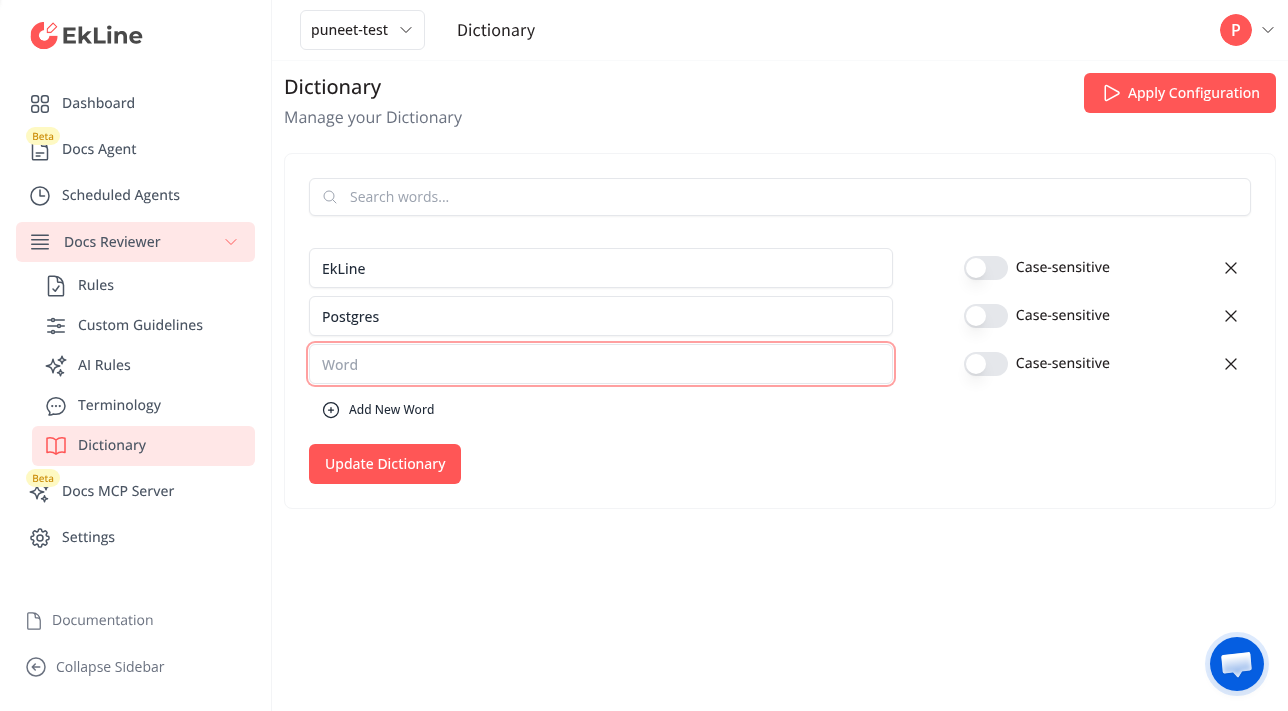
The dictionary shows your saved words, each with a Case-sensitive toggle, and an empty row ready for a new entry.
Step 2: Add your words
Section titled “Step 2: Add your words”-
Enter a word in the Word field. You can add a multi-word term, such as a product name with spaces.
-
Set the Case-sensitive toggle for that word (see Match exact capitalization below).
-
Click Add New Word and repeat for each term you want EkLine to accept.
-
Click Update Dictionary to save your dictionary.
A confirmation message appears when your dictionary saves. EkLine applies the new words on your next review.
Match exact capitalization
Section titled “Match exact capitalization”The Case-sensitive toggle controls how EkLine matches a word:
| Toggle | Behavior | Example |
|---|---|---|
| Off (default) | EkLine accepts the word in any capitalization. | kubernetes, Kubernetes, and KUBERNETES all pass. |
| On | EkLine accepts only the exact spelling you enter. Other capitalizations are still checked. | Adding EkLine accepts EkLine, but ekline is still reviewed. |
Turn the toggle on when the correct form of a word depends on its capitalization, so EkLine keeps flagging the wrong casing.
Verify that EkLine accepts your words
Section titled “Verify that EkLine accepts your words”Run a review against content that has one of the words you added, and confirm EkLine no longer flags it.
ekline-cli --ek-token YOUR_TOKEN --content-directory ./docsThe word no longer appears in the output with a spelling suggestion:
[EK00300] 'responce' could be a typo. Check the spelling.Open a file that uses the word and run EkLine: Review current document from the Command Palette (Cmd/Ctrl + Shift + P). The word no longer appears in the EkLine Suggestions panel.
If the word still gets flagged, see the troubleshooting steps below.
Troubleshooting
Section titled “Troubleshooting”EkLine still flags a word I added
Section titled “EkLine still flags a word I added”- Confirm you clicked Update Dictionary after adding the word. The dictionary saves only when you do.
- Check the Case-sensitive toggle. If it’s on, EkLine accepts only the exact capitalization you entered. Turn it off to accept every capitalization.
- Run the review again. EkLine applies dictionary changes on the next review, not to results from a review that already ran.
The same word appears twice
Section titled “The same word appears twice”EkLine prevents duplicate entries. If you see a duplicate error, remove the extra row with the X button next to it, then save.
Enforce a preferred term instead of accepting a word
Section titled “Enforce a preferred term instead of accepting a word”The dictionary accepts a word but doesn’t suggest a replacement. To steer writers from one term to another — for example, from e-mail to email — use terminology rules. Contact support@ekline.io to set up custom terminology.
Next steps
Section titled “Next steps”- Ignoring rules — turn off a rule or skip specific content.
- Choose and apply a style guide — set the writing standard EkLine enforces.
- CLI reference — all configuration options and flags.