

Update and review documentation
Use update mode when documentation exists but needs changes. Use review mode to get feedback without modifying content.
Update from tickets
Section titled “Update from tickets”When a feature ships or a bug is fixed, update documentation by referencing the ticket. The agent reads the ticket details and identifies which docs need changes.
Works with: Linear, Jira
Update the documentation based on Linear ticket ENG-1234.ENG-1234 added rate limiting to the API. Update theAPI reference with the new rate limit headers anderror responses.Update the authentication docs based on ENG-1234,ENG-1235, and ENG-1236.Update from code changes
Section titled “Update from code changes”Point the agent to code changes and it updates relevant documentation.
The login flow changed in the last commit. Update theauthentication guide to reflect the new OAuthimplementation in src/auth/.We deprecated the /api/v1/users endpoint. Update theAPI reference to mark it as deprecated and point tothe v2 replacement.Update specific sections
Section titled “Update specific sections”Target specific parts of a document instead of regenerating everything.
Update only the "Configuration" section indocs/getting-started.md with the new environmentvariables from .env.example.Add a "Troubleshooting" section to the deployment guidecovering the three most common issues from our supporttickets.This is useful when you want precise edits without affecting the rest of the document.
Review documentation
Section titled “Review documentation”Get AI feedback on existing documentation without making changes. The agent analyzes your content and provides suggestions.
What the agent checks
Section titled “What the agent checks”| Aspect | What it looks for |
|---|---|
| Clarity | Are instructions easy to follow? Is the language clear? |
| Completeness | Are steps missing? Are edge cases covered? |
| Accuracy | Does the documentation match the current code? |
| Consistency | Does terminology match other docs? Is formatting consistent? |
Example prompts
Section titled “Example prompts”Review the getting started guide and suggest improvementsfor clarity and completeness.Review the API reference for the authentication endpoints.Check if the examples still work with the current code.Review docs/deployment.md from the perspective of adeveloper who has never deployed this application before.Applying suggestions
Section titled “Applying suggestions”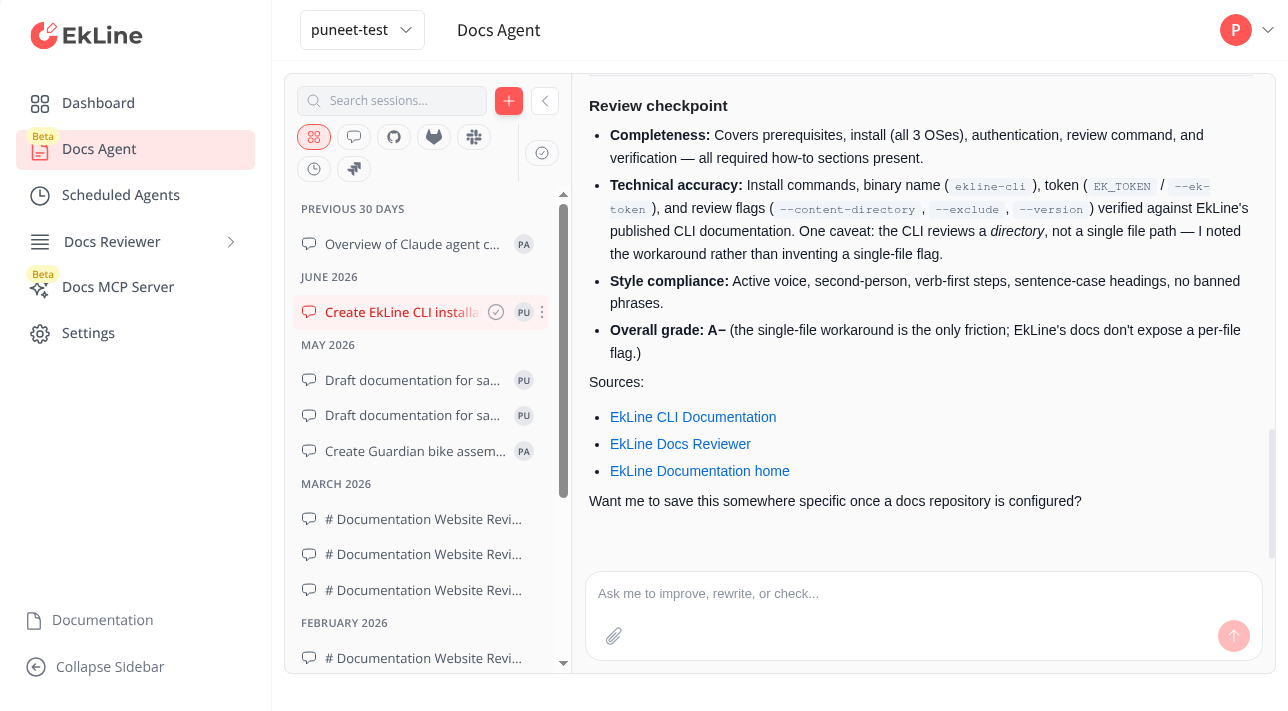
The agent provides feedback in the chat panel. You can:
- Apply suggestions you agree with by asking the agent to make the change
- Edit directly in the editor panel
- Iterate by asking for more specific feedback
Verify before publishing
Section titled “Verify before publishing”View changes
Section titled “View changes”Enable View All Changes in the toolbar to see a diff of all modifications. Review each change before creating a pull request.
Look for:
- Unintended deletions.
- Formatting issues.
- Content that needs adjustment.
Link validation
Section titled “Link validation”The agent automatically validates links and email addresses in generated content. If it detects broken links, it regenerates the affected sections with corrections.
Create a pull request
Section titled “Create a pull request”When satisfied with the changes:
-
Click Raise PR in the toolbar.
The agent prefills a prompt in the chat panel — for example,
Open a pull requestorOpen a pull request for my-org/my-repowhen you have changes across multiple repositories. -
Edit the prompt if you want to add instructions, then press Enter to send it.
-
The agent creates the pull request and responds in the chat with a link to the PR.
If your session spans multiple repositories, the toolbar shows a PRs dropdown in place of the Raise PR button. Open it and select Raise PR on the repository you want.
Update an existing pull request
Section titled “Update an existing pull request”After a PR is open, you can push more changes to it:
-
Make further edits in the editor or ask the agent for more changes in the chat.
-
Click Update PR in the toolbar when new changes are ready.
The agent prefills a prompt like
Update pull request #42 with my latest changes. -
Edit the prompt if needed, then press Enter.
-
The agent commits and pushes your changes to the existing PR branch.
Next steps
Section titled “Next steps”- Create documentation — Generate READMEs, API references, and guides from your codebase.
- Scheduled agents — Automate recurring doc tasks like drift audits and freshness checks.
- Integrations — Connect Slack, Notion, Linear, Jira, and other tools.
- Set up automated review — Run EkLine Docs Reviewer in your CI/CD pipeline to catch issues before they merge.