

Connect GitLab to EkLine Docs Agent
Connect GitLab to EkLine so Docs Agent can reference your merge requests, issues, and repository files when it generates and updates documentation.
GitLab connects with a GitLab access token. You add the token once at the organization level, and every member of your EkLine organization can then reference GitLab content in their Docs Agent sessions.
Prerequisites
Section titled “Prerequisites”- An EkLine account with an organization. Sign up if you haven’t already.
- A GitLab account with access to the projects you want EkLine to reference.
- Permission in GitLab to create an access token with the required scopes.
Generate a GitLab group access token
Section titled “Generate a GitLab group access token”A group access token covers every project in the group with a single token, so it’s the recommended option when your organization has multiple projects. EkLine also accepts personal and project access tokens if you prefer to scope access differently. For full details, see the GitLab group access tokens reference.
-
Open the group’s access tokens page in GitLab.
Go to the group you want EkLine to access, then navigate to Settings > Access tokens.
-
Add a new token.
Click Add new token and enter a recognizable name, such as
EkLine Integration. -
Set an expiration date.
Set the expiration as needed. EkLine tracks the expiration date and shows you when the token is close to expiring.
-
Select a role.
Select the Developer role or higher. The role determines what the token can read across the group’s projects.
-
Select the required scopes.
Select both the
apiandread_repositoryscopes. The connection fails without both. -
Create and copy the token.
Click Create group access token and copy the generated token. The token starts with
glpat-.
Connect GitLab in EkLine
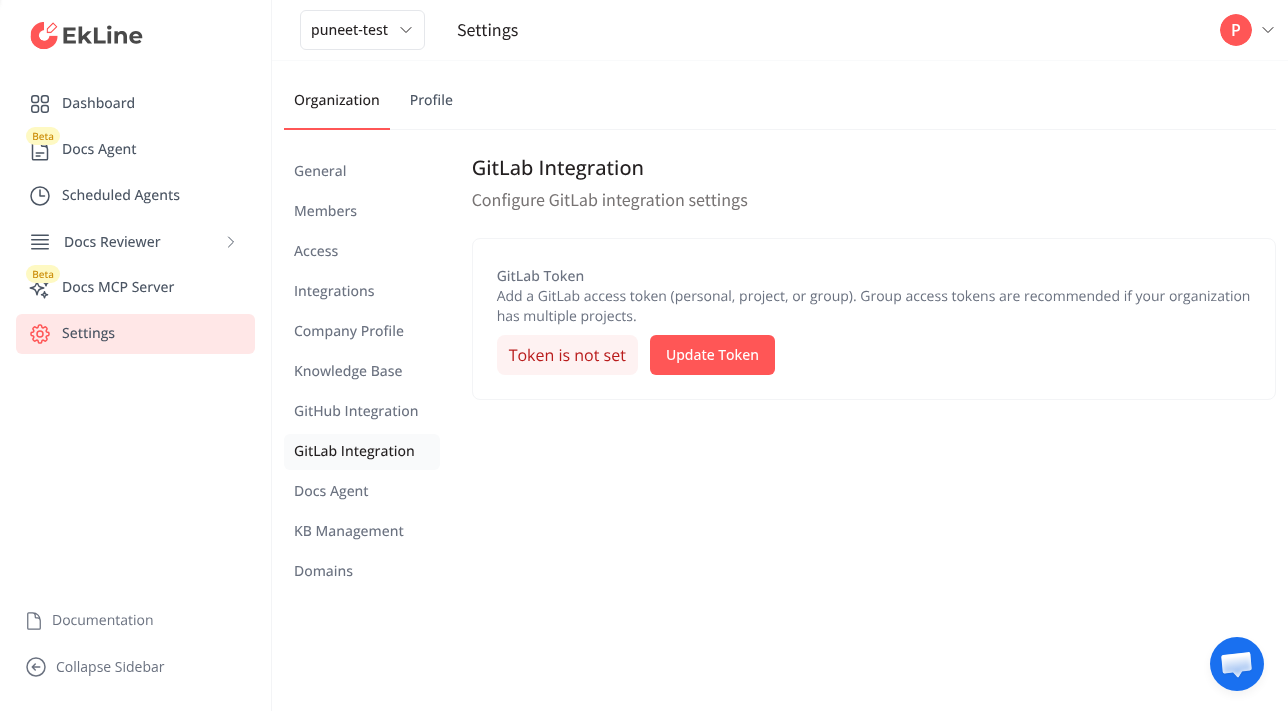
Section titled “Connect GitLab in EkLine”The GitLab Integration settings page holds your token. Before you add a token, the status reads Token is not set.
-
Open GitLab integration settings.
Go to your EkLine Dashboard and navigate to Settings > Integrations > GitLab Integration.
-
Add your token.
Click the Update Token button. Paste your GitLab token into the GitLab Token field.
-
Save the token.
Save your changes. EkLine validates the token, confirms the scopes, and stores it encrypted. When the connection succeeds, the status changes to Token is set.
Select code repositories
Section titled “Select code repositories”After you connect a token, EkLine loads the GitLab projects the token can access.
-
Find the “What else EkLine can read” section.
The What else EkLine can read section lists the GitLab projects available to the token. It carries a Read-only badge: EkLine reads these projects to work out what changed and why, and never writes to them.
-
Select your projects.
Select the GitLab projects where your product changes land.
-
Check that your selection saved.
Your selection saves automatically as you change it, so there is no save button to click. A status message below the list reads Saving…, then Saved once the selected projects are available in Docs Agent sessions. If a save fails, the message reads Could not save the repository selection. and shows a Try again control.
Select documentation repositories
Section titled “Select documentation repositories”Choose which GitLab projects hold your documentation. Docs Agent clones these projects into its workspace and opens merge requests against them when it drafts or updates docs.
-
Find the “Where EkLine writes” section.
The Where EkLine writes section lists the same GitLab projects available to the token. It carries a Write access badge: EkLine opens merge requests in these projects.
-
Select your docs projects.
Select the GitLab projects where Docs Agent should propose documentation changes.
-
Check that your selection saved.
Your selection saves automatically as you change it, so there is no save button to click. A status message below the list reads Saving…, then Saved once your choice is stored, which lets Docs Agent open merge requests against the selected projects. If a save fails, the message reads Could not save the repository selection. and shows a Try again control.
Configure the GitLab webhook
Section titled “Configure the GitLab webhook”A webhook lets GitLab notify EkLine about events in your project, such as new merge requests and comments. After you add a token, EkLine shows the Webhook Configuration section with the values you need.
-
Copy the webhook details from EkLine.
In the Webhook Configuration section on the GitLab integration settings page, copy the Webhook URL and the Secret Token.
-
Open the webhooks page in GitLab.
In your GitLab project, navigate to Settings > Webhooks and click Add new webhook.
-
Enter the webhook URL and secret.
Paste the EkLine webhook URL into the URL field, then paste the secret into the Secret token field.
-
Select the triggers.
Enable these triggers: Push events, Comments, Emoji events, and Merge request events.
-
Save the webhook.
Click Add webhook. GitLab now sends events to EkLine for that project.
Verify the connection
Section titled “Verify the connection”Confirm that the integration is ready:
- The token status shows Token is set.
- Your selected projects appear under What else EkLine can read, and your documentation projects under Where EkLine writes.
- The Webhook URL and Secret Token appear in the Webhook Configuration section.
- A team member can reference a GitLab merge request or issue in a Docs Agent session and the agent fetches the content.
Use GitLab content in Docs Agent
Section titled “Use GitLab content in Docs Agent”After you connect GitLab, reference GitLab content directly in your prompts. The agent recognizes GitLab URLs and IDs automatically and pulls the details from your connected projects.
Create a changelog entry based on this GitLab merge request:https://gitlab.com/your-org/platform/-/merge_requests/42Update the authentication docs based on the changes inGitLab issue #215.Document the new API endpoints by referencing the fileschanged in merge request !87.The agent accesses content using the permissions of the account that created the token. You can only pull content that account has permission to view.
Next steps
Section titled “Next steps”- Generate documentation from GitLab merge requests — trigger Docs Agent by mentioning
@ekline-aiin a merge request comment. - Docs Agent integrations — see every source you can reference, including Slack, Notion, Jira, and Confluence.
- Create documentation — generate a draft from your connected sources.
- Update and review — refine and review documentation with the agent.
Stuck?
Section titled “Stuck?”Reply to your welcome email or contact support@ekline.io. We read every message.