

Connect GitHub to EkLine Docs Agent
Connect your GitHub organization to EkLine so Docs Agent can monitor your repositories, review pull requests, and generate documentation automatically.
Prerequisites
Section titled “Prerequisites”- An EkLine account with an organization. Sign up if you haven’t already.
- Admin access to the GitHub organization you want to connect.
Install the GitHub App
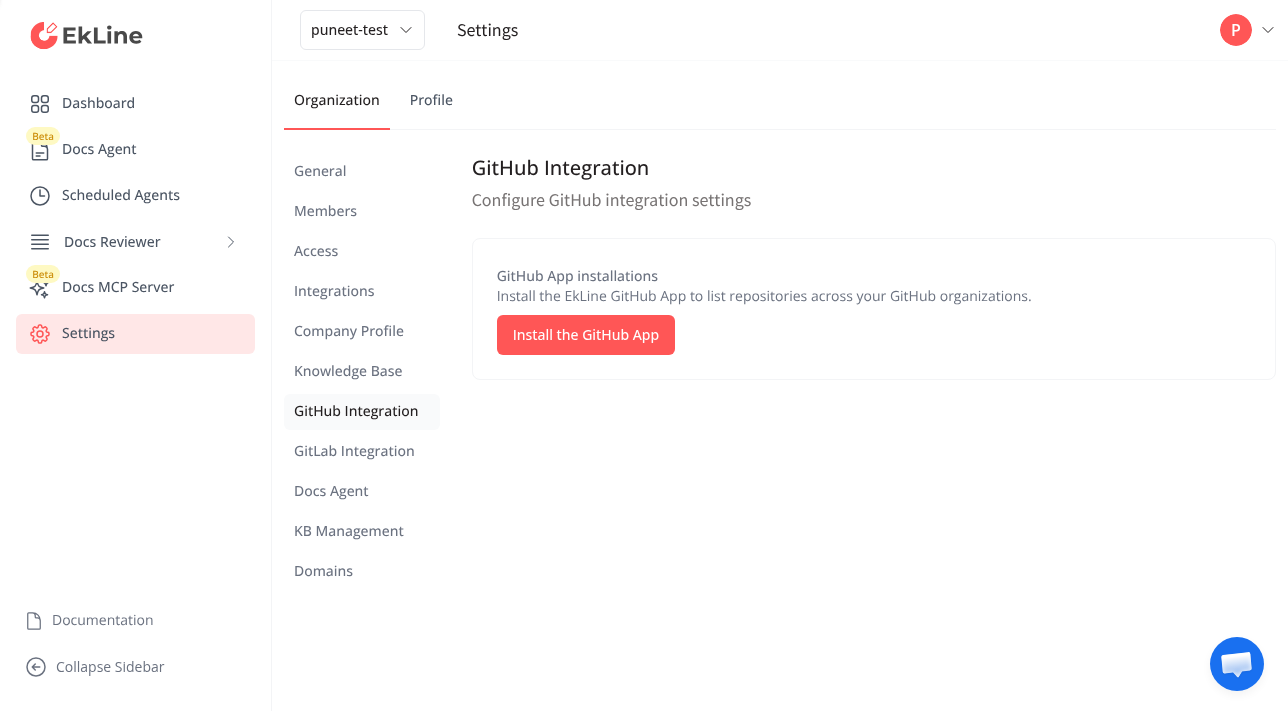
Section titled “Install the GitHub App”The GitHub Integration settings page is where you start the installation. On your first connection, it shows the Install the GitHub App button.
-
Open GitHub integration settings.
Go to your EkLine Dashboard and navigate to Settings → Organization → GitHub Integration.
-
Start the installation.
Click the Install on another GitHub organization button. This redirects you to GitHub to authorize the EkLine app.
-
Select your GitHub account.
On the GitHub authorization page, select the user account you want to use to authorize EkLine.
-
Select the target organization.
Choose the GitHub organization where you want to install the EkLine app.
-
Choose repository access.
GitHub shows two options:
- All repositories — Grants EkLine access to every repository in the organization.
- Only select repositories — Lets you pick specific repositories.
Select Only select repositories and search for the repositories you want EkLine to monitor. You can always change this later in your GitHub organization settings.
-
Complete the GitHub installation.
Click the Install button. GitHub redirects you back to EkLine to complete the connection.
Connect the organization in EkLine
Section titled “Connect the organization in EkLine”-
Select your organization.
On the GitHub App Setup page, use the Select an organization dropdown to choose the GitHub organization you installed the app on.
-
Finish the connection.
Click the Connect GitHub button. EkLine links your GitHub organization and loads the available repositories.
Configure repositories
Section titled “Configure repositories”After connecting, the GitHub integration settings page shows two sections for adding repositories. Each section carries a permission badge so you can tell at a glance which repositories EkLine writes to.
| Section | Badge | Purpose |
|---|---|---|
| Where EkLine writes | Write access | Repositories that hold your documentation. EkLine opens pull requests in these repositories. Supports path configuration for targeting specific directories or files. |
| What else EkLine can read | Read-only | Source code repositories where your product changes land. EkLine reads these to work out what changed and why, and never writes to them. |
Add documentation repositories
Section titled “Add documentation repositories”-
Search and select a repository.
Use the search field under Where EkLine writes to find and select a repository.
-
Add documentation paths.
Click the Add Path button next to the repository. Enter the file or directory path you want EkLine to monitor (for example,
docs/,README.md, orcontent/).Click Save to confirm. The path appears as a tag that you can remove later.
-
Enable monitoring.
Toggle the Enable monitoring switch to let EkLine automatically monitor the repository for documentation changes.
-
Check that your selection saved.
Your selection saves automatically as you change it, so there is no save button to click. A status message below the list reads Saving… while a change is in flight, then Saved once it is stored. If a save fails, the message reads Could not save the repository selection. and shows a Try again control.
Add code repositories
Section titled “Add code repositories”Use the search field under What else EkLine can read to select source code repositories. These give EkLine context for documentation generation and review, and like the repositories under Where EkLine writes, they are eligible for automatic PR review. They do not require path configuration.
Verify the connection
Section titled “Verify the connection”After completing the setup, confirm everything is working:
- The GitHub App installations section shows your connected organization.
- Your selected repositories appear under Where EkLine writes or What else EkLine can read.
- Documentation paths are displayed as tags next to their repositories.
- The Enable monitoring toggle is active for repositories you want to track.
Next steps
Section titled “Next steps”- Use the GitHub PR bot to generate documentation from pull request comments.
- Set up automatic PR review so EkLine detects when PRs need documentation updates.
- Set up the GitHub Action to run automated style checks on every pull request.
Stuck?
Section titled “Stuck?”Reply to your welcome email or contact support@ekline.io. We read every message.