

Generate release notes from completed tickets
Turn a set of completed tickets into a clear, user-facing release note. Docs Agent reads each ticket’s title, description, and comments, then rewrites the work in plain language. It groups the work into sections such as Features and Bug Fixes, then opens a pull request you can review before publishing.
This guide covers the interactive workflow in the editor. To produce release notes automatically on a recurring cadence, see Automate release notes.
Before you begin
Section titled “Before you begin”You need:
- An EkLine account with Docs Agent enabled.
- At least one repository connected to EkLine.
- A connected ticket source. Docs Agent generates release notes from Linear or Jira. Connect one under Settings > Organization > Integrations (see Integrations).
- The ticket identifiers you want to include, such as
ENG-100throughENG-110, or a milestone or release name the agent can look up.
Generate a release note
Section titled “Generate a release note”-
Log in to your EkLine dashboard and click Docs Agent in the left navigation.
-
In the chat panel, describe the release. Name the tickets, the output sections, and the audience:
Generate release notes for v2.1 from Linear tickets ENG-100through ENG-110. Group them under Features, Improvements, andBug Fixes. Write for end users, one sentence per item. -
Wait while the agent reads each ticket and drafts the release note in the editor panel.
-
Review the draft. Ask the agent to refine anything that reads inaccurately — for example,
Move the rate-limiting change under ImprovementsorRewrite the SSO item without internal jargon.
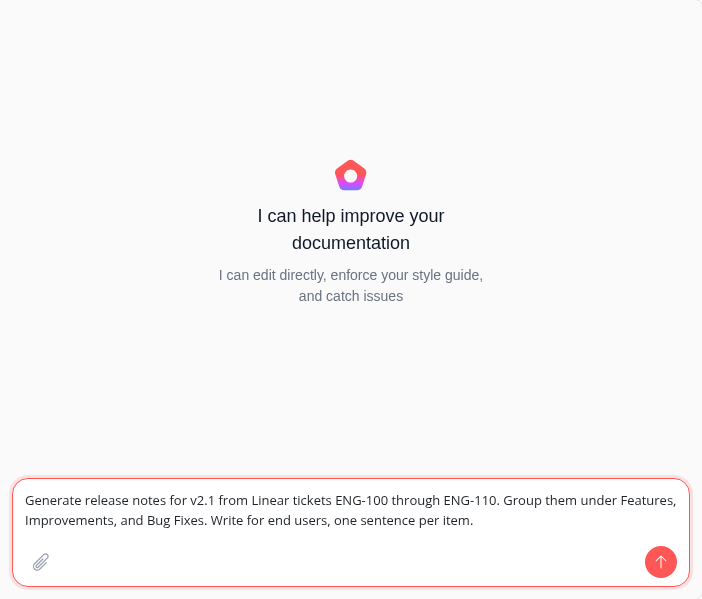
The agent summarizes each ticket from an end-user perspective rather than copying the ticket text, so internal shorthand and implementation detail stay out of the published note.
Structure the output
Section titled “Structure the output”Tell the agent how to group and order entries so the release note matches your existing format.
Generate release notes for the tickets in the "1.4" milestone.Group them under Features, Improvements, and Bug Fixes. Withineach group, list the most impactful change first.Generate release notes for tickets ENG-200 through ENG-215.Match the heading style and tone of CHANGELOG.md, and add thenew version at the top.Generate release notes for the v3.0 release from Jira ticketsin the PLAT project fixVersion 3.0. Call out breaking changesin a separate section at the top with migration notes.Verify the release note
Section titled “Verify the release note”Before you publish, confirm the draft is accurate and complete.
-
Enable View All Changes in the toolbar to see a diff of what the agent wrote.
-
Check that every ticket you named appears, and that no internal-only tickets slipped in.
-
Confirm version numbers, dates, and section headings match your convention.
The agent validates links and email addresses in the generated content and regenerates any section it finds a broken link in.
Raise a pull request
Section titled “Raise a pull request”When the draft is ready:
-
Click Raise PR in the toolbar. The agent prefills a prompt in the chat panel, such as
Open a pull request. -
Edit the prompt if you want to add instructions, then press Enter.
-
The agent opens the pull request and replies in the chat with a link so you can finish the review on GitHub.
To add a late-arriving ticket after the PR is open, ask the agent for the change, then click Update PR to push it to the same branch.
Automate release notes
Section titled “Automate release notes”To generate release notes on a schedule instead of on demand, use the Release Notes Generator template for scheduled agents. It drafts structured release notes from completed tickets and GitHub activity since the last release-notes update, and delivers them as a pull request, a Slack message, or both.
Troubleshooting
Section titled “Troubleshooting”| Problem | Cause | Fix |
|---|---|---|
| The agent can’t find a ticket | The ticket source isn’t connected, or the identifier is wrong | Connect Linear or Jira under Settings > Organization > Integrations, then confirm the ticket key and project. |
| Entries read like internal commit messages | The prompt didn’t set an audience | Add "Write for end users" and ask the agent to rewrite items in plain language. |
| A ticket is missing from the draft | It fell outside the range or milestone you named | Name the ticket explicitly, or widen the range: "Also include ENG-118". |
| Sections are in the wrong order | The default grouping doesn’t match your format | Specify the sections and their order in the prompt, or point the agent at an existing changelog file to match. |
Next steps
Section titled “Next steps”- Create documentation — Generate READMEs, API references, and guides from your codebase.
- Update and review — Keep documentation in sync with code changes.
- Scheduled agents — Automate release notes and other recurring documentation tasks.
- Integrations — Connect Linear, Jira, Slack, and more.