

Tutorial: turn recurring support questions into a knowledge base article
This tutorial walks you through closing a support gap end to end. You start from a question customers keep asking and finish with a published help center article that answers it. Along the way, Docs Agent drafts the article from the support thread that already resolved the issue. You review it, match it to your help center’s style, and publish it live to Confluence or Pylon.
By the end, you can:
- Recognize when a repeat ticket is a documentation gap rather than a one-off.
- Draft a self-serve help center article from the support conversation that resolved the question.
- Review the draft the way a customer reads it, so the article deflects the next ticket instead of prompting a follow-up.
- Publish the article straight to your help center and link it back to the customers who ask.
The whole path takes about 20 minutes. The Getting started tutorial generates a single README, and document a release covers the release ritual. This tutorial covers the support ritual: turning the questions your team answers again and again into documentation that answers them once.
Before you begin
Section titled “Before you begin”You need:
- An EkLine account with Docs Agent and knowledge base management enabled.
- A connected help center with at least one space or knowledge base marked as managed, and permission to publish to it. An administrator connects it once, and Pylon knowledge bases also need a default author. See Connect your knowledge base.
- A recurring question to close: one your team has answered more than once, with a resolved support thread or a ticket that shows the symptom and the fix.
You don’t answer the ticket again during this tutorial. The answer already exists in a thread or a ticket. You turn it into an article your customers find themselves.
Step 1: Confirm the question is a documentation gap
Section titled “Step 1: Confirm the question is a documentation gap”Not every ticket is worth an article. A question is a documentation gap when customers hit it repeatedly and the answer is stable enough to publish. Before you open a session, pin down three things:
- The question, in the customer’s words. Write the one sentence a customer types into search, not the internal shorthand your team uses for it.
- The evidence. Find two or more tickets or threads where the question came up, so you know it recurs.
- The resolution. Pick the clearest resolved thread. The better it states the symptom and the fix, the closer the first draft lands.
Verify: You can state the question in one sentence and point to at least two instances of it, one of them resolved.
Step 2: Open a session
Section titled “Step 2: Open a session”- Log in to your EkLine dashboard.
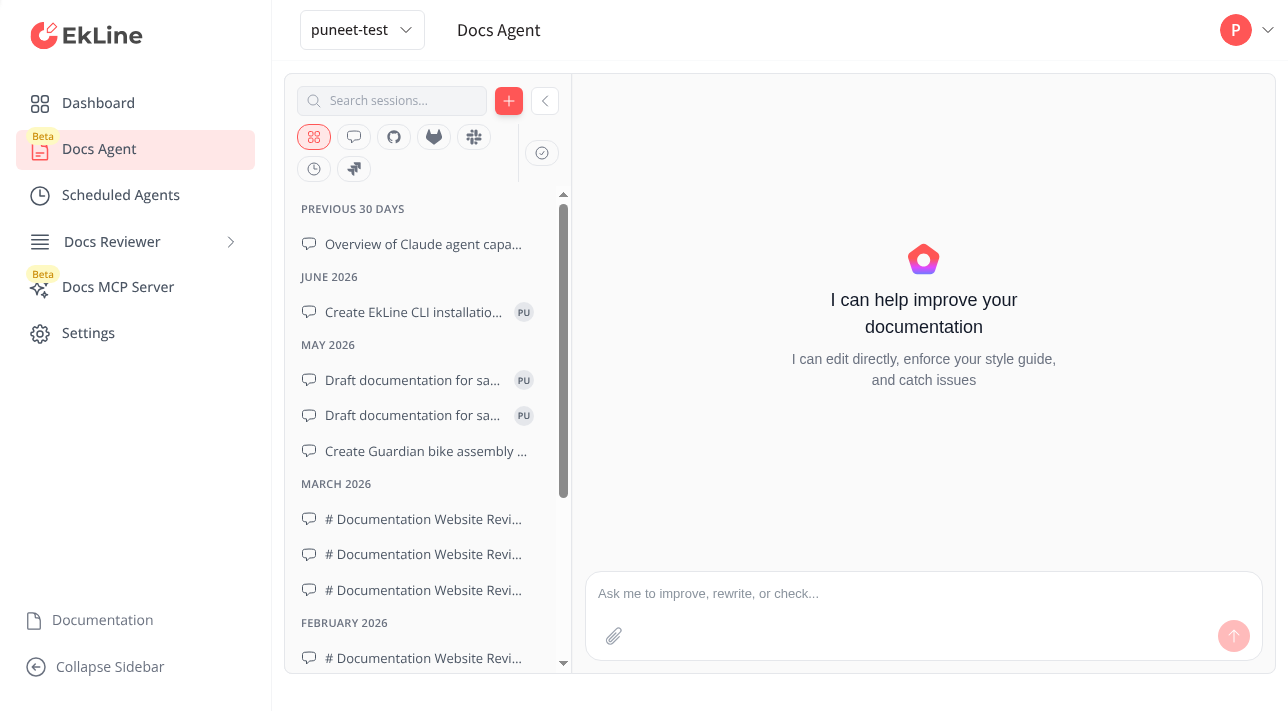
- Click Docs Agent in the left navigation.
Verify: The editor opens with a chat panel on the right, an editor panel on the left, and a toolbar across the top.
Step 3: Draft the article from the support thread
Section titled “Step 3: Draft the article from the support thread”Hand the agent the resolved thread and tell it to write for customers, not for your team. When you reference the thread, the agent reads the conversation, pulls out the symptom and the fix, and drafts a new help center article rather than a copy of the discussion.
In the chat panel, name the question, the evidence, and where the article belongs:
Customers keep asking how to reset an expired API token, and supportanswers it in most weeks. Draft a new help center article thatanswers it end to end, based on this resolved thread:https://workspace.slack.com/archives/C01234/p1234567890Write for customers who have never seen our dashboard, and add it toour support knowledge base.Verify: The agent reads the thread, drafts a new article in the editor panel on the left, and reports what it based the article on.
Step 4: Review it the way a customer reads it
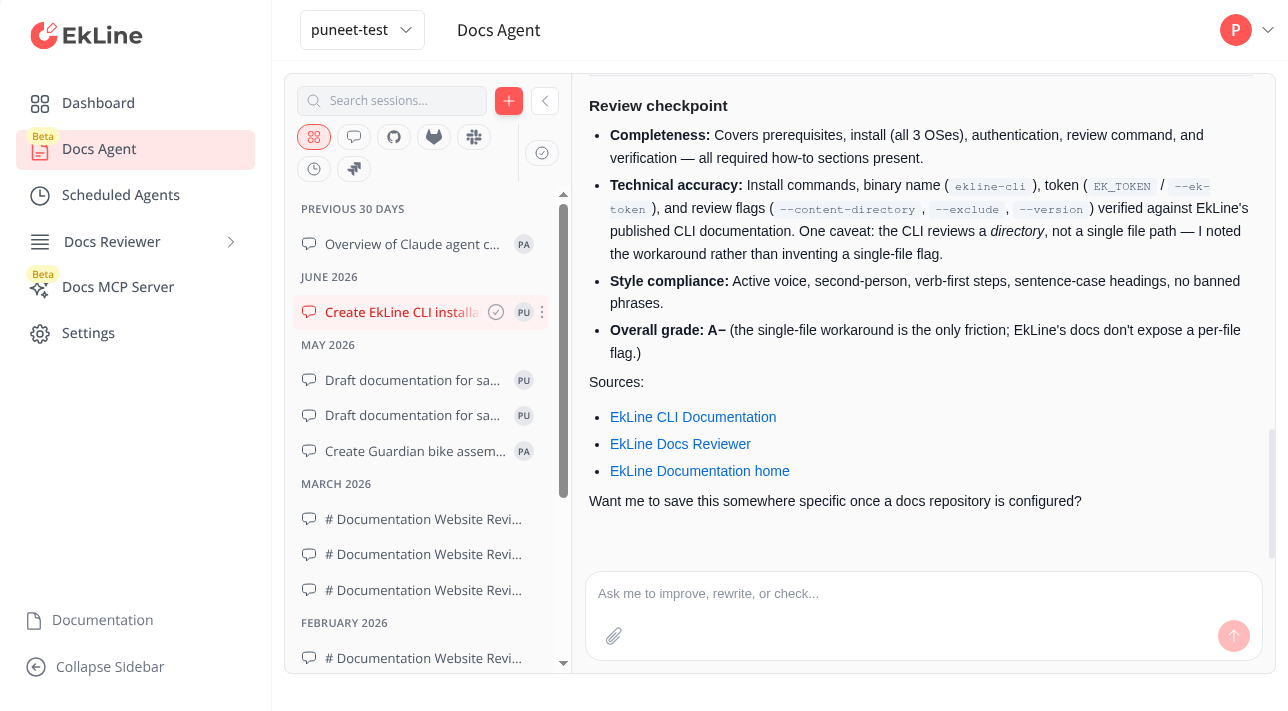
Section titled “Step 4: Review it the way a customer reads it”Never publish the first draft unread. Support content fails when it answers the team’s version of the question instead of the customer’s. Read the draft as if you were the customer who opened the ticket.
-
Ask the agent to check its own draft against the goal:
Review this draft as a customer who has never contacted support.Does it answer the whole question on its own? Flag any step thatassumes internal knowledge, any point where they would still needto open a ticket, and anything that no longer matches the product. -
Check three things across the draft:
- Completeness - Does the article answer the question end to end, so the customer never needs to ask?
- Accuracy - Does each step match how the product behaves today?
- Scope - Does it stay on this one question instead of drifting into adjacent topics?
-
Refine anything that reads inaccurately with a follow-up prompt rather than editing by hand. For example:
Add a short section on what to do when the reset email never arrives, since that is the follow-up question in the thread.The agent keeps the context from your first prompt and updates the same draft.
Verify: The checkpoint reports no remaining gaps, or you resolve each one it raises with a follow-up prompt.
Step 5: Match your help center’s style
Section titled “Step 5: Match your help center’s style”A new article should read like the ones already in your help center. Point the agent at an existing article so the draft picks up your structure, headings, and voice.
Match this to the format of our existing "Reset your password"article: same heading style, a short summary at the top, and numberedsteps. Keep the tone plain and reassuring.To hold that style across every article without repeating yourself, set it once in custom instructions. The agent then applies your help center’s conventions to each draft.
Verify: The draft uses the same structure and voice as your existing articles, with the recurring question answered in your house style.
Step 6: Publish the article to your help center
Section titled “Step 6: Publish the article to your help center”When the article reads clearly and matches your style, publish it straight to the source. Working on a knowledge base, the toolbar shows Update KB in place of Raise PR, because your approval publishes the article rather than opening a pull request.
- Enable View All Changes in the toolbar to review the full article one last time.
- Click Update KB to publish. The tooltip reads Publish your knowledge base edits.
Verify: Open your help center. The new article is live, its headings and steps render correctly, and it matches what you reviewed under View All Changes.
Step 7: Close the loop
Section titled “Step 7: Close the loop”An article only reduces tickets once customers reach it. Finish by connecting the article back to the question:
- Link it in your reply. The next time the question comes in, answer with a link to the new article instead of retyping the fix.
- Watch whether the question returns. If customers still open tickets, reopen the session and sharpen the article with a follow-up prompt, then publish again.
- Automate the recurring audit. Once you have a few articles, a scheduled agent can review your help center against the latest product behavior on a cadence, so published answers stay current without a manual pass.
Verify: You can answer the customer’s question with a single link, and the article resolves it without a follow-up ticket.
Summary
Section titled “Summary”You turned a repeat support question into a published, self-serve article. Along the way you:
- Confirmed the question was a documentation gap, not a one-off.
- Drafted a help center article from the thread that resolved it, written for customers.
- Reviewed the draft for self-serve completeness and matched it to your help center’s style.
- Published it live to Confluence or Pylon and linked it back to the customers who ask.
This is the ritual you repeat whenever a question keeps landing in the queue. The clearer the resolved thread you start from, the closer the first draft lands, and the faster each recurring question turns into an answer customers find on their own.
Next steps
Section titled “Next steps”- Manage a Confluence or Pylon knowledge base - Update existing articles, maintain a whole space, and manage images.
- Turn a Slack support thread into a troubleshooting doc - Draft from a thread without leaving Slack, for docs that live in a git repository.
- Customize for your organization - Set your help center’s tone and structure once so every draft matches.
- Scheduled agents - Keep published answers current with a recurring audit.