

Connect an MCP client
EkLine serves a Model Context Protocol (MCP) server, so you can work with EkLine from your own AI client without switching to the web app. Describe what you want to your client (Claude Code, Cursor, or another) and it calls EkLine for you: start an agent session, find past work, ask how a feature works, or set your organization up.
Use this when you are already working in an AI client and want to hand documentation work to EkLine in the same place, instead of switching to the web app and retyping the task.
The server exposes these tools:
| Tool | What it does |
|---|---|
create_session | Starts a Docs Agent or Marketing Agent session from a task you describe, and returns the session id and a link to follow it. |
get_session_status | Reports whether a session is still working, has finished, was stopped, or ran into a problem, along with its most recent messages. |
send_session_message | Sends a follow-up message to a session that is already running, so you can redirect it without leaving your client. |
list_sessions | Lists your organization’s sessions, or finds the ones related to a pull request, ticket, or session link you paste. |
search_ekline_docs | Answers a question about EkLine from the published product documentation, with a link to each page it draws from. |
update_company_profile | Updates the company profile EkLine gives every agent session. Writes organization-wide settings. |
create_rules | Adds a standing instruction the agents follow on later work. Writes organization-wide settings. |
Prerequisites
Section titled “Prerequisites”- You are a member of an EkLine organization.
- You use an MCP client that connects over HTTP and lets you set a request header. Claude Code and Cursor both qualify. See Supported clients.
Create a personal API key
Section titled “Create a personal API key”Your client authenticates with a personal API key. The key acts as you, in one organization: every session you start through it is recorded under your name, and no other member can see or use it.
-
Open Settings and select the Personal API keys tab, or go directly to your API keys.
-
Confirm the organization named on the page is the one you want the key to act in. A key works in a single organization. To create a key for another organization, switch to it first.
-
Click Create key, give the key a name you will recognize later, and confirm.
-
Copy the key and store it somewhere safe, such as a password manager.
A key looks like ek_<id>_<secret>. The <id> half is not secret (you see it in your key list long after the secret is gone), but the whole value is a credential. Treat it like a password and never commit it to a repository.
Add EkLine to your client
Section titled “Add EkLine to your client”Your API keys page shows a ready-made setup snippet for each client, with your server URL and key already filled in. Copy the snippet for your client and follow the instructions below.
The server URL is https://ekline.io/api/mcp.
Run this in your terminal, then open a new session, since Claude Code loads MCP servers at start:
claude mcp add --transport http ekline \ https://ekline.io/api/mcp \ --header "Authorization: Bearer ek_<id>_<secret>"Add this to .cursor/mcp.json, in your home folder or your project:
{ "mcpServers": { "ekline": { "url": "https://ekline.io/api/mcp", "headers": { "Authorization": "Bearer ek_<id>_<secret>" } } }}Any client that lets you set a request header works, including VS Code and Windsurf. Point it at the server URL and send your key as a bearer token:
Server URL https://ekline.io/api/mcpHeader Authorization: Bearer ek_<id>_<secret>Once the client reconnects, it lists the EkLine tools. That confirms your key resolved and the server is reachable.
Connect from Claude on the web
Section titled “Connect from Claude on the web”Claude on the web does not take the command line setup. Add EkLine as a custom connector instead, with your key sent as a request header. Claude Desktop uses the same connector dialog.
-
Open Settings → Connectors and click Add → Add custom connector.
-
Give the connector a name, such as
ekline, enter the server URLhttps://ekline.io/api/mcp, and click Continue.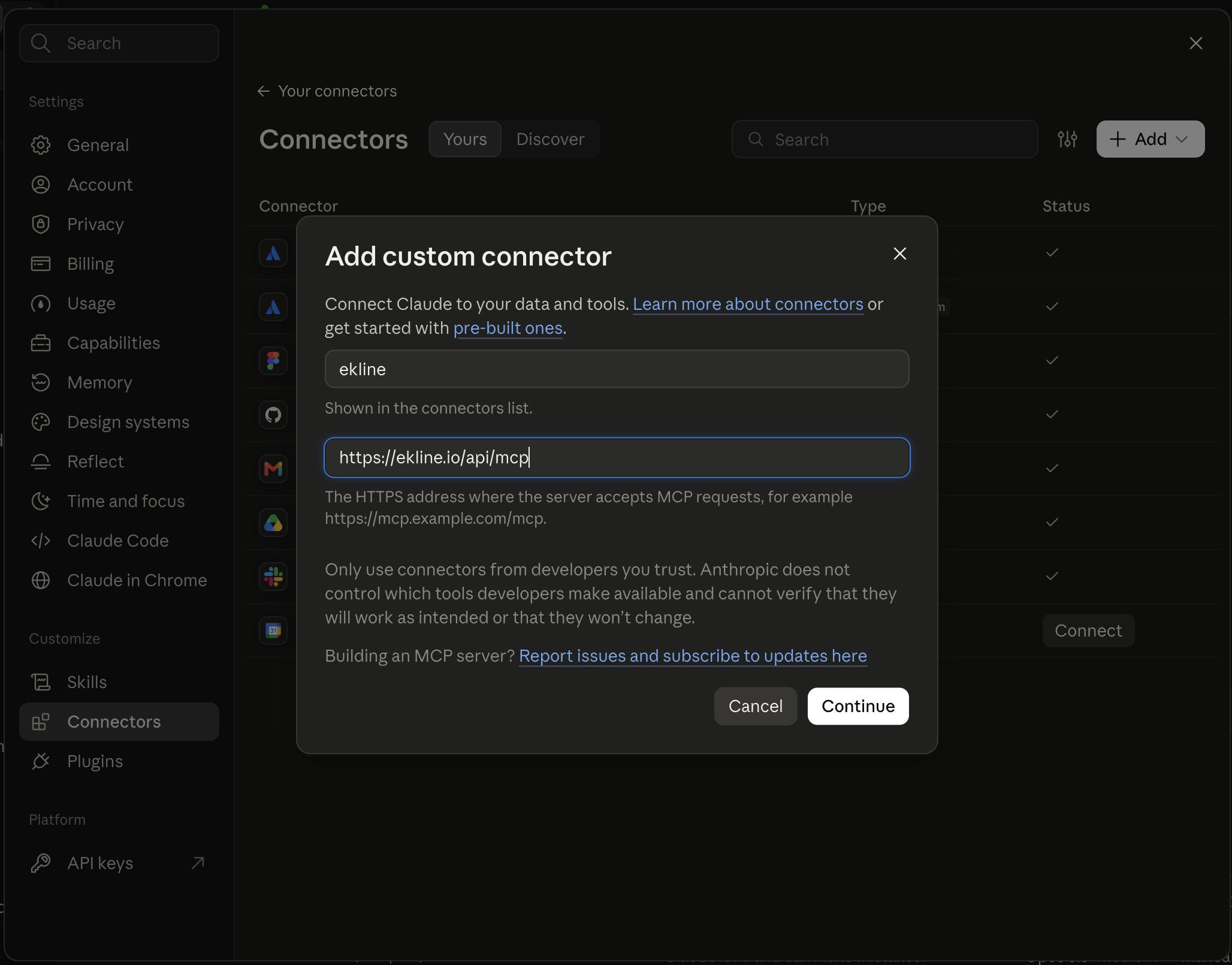
-
Under Authentication, select No sign-in. Claude detects this for EkLine, which authenticates with a key rather than a sign-in flow.
-
Under Request headers, add a header named
Authorizationwith the valueBearer ek_<id>_<secret>, then click Connect.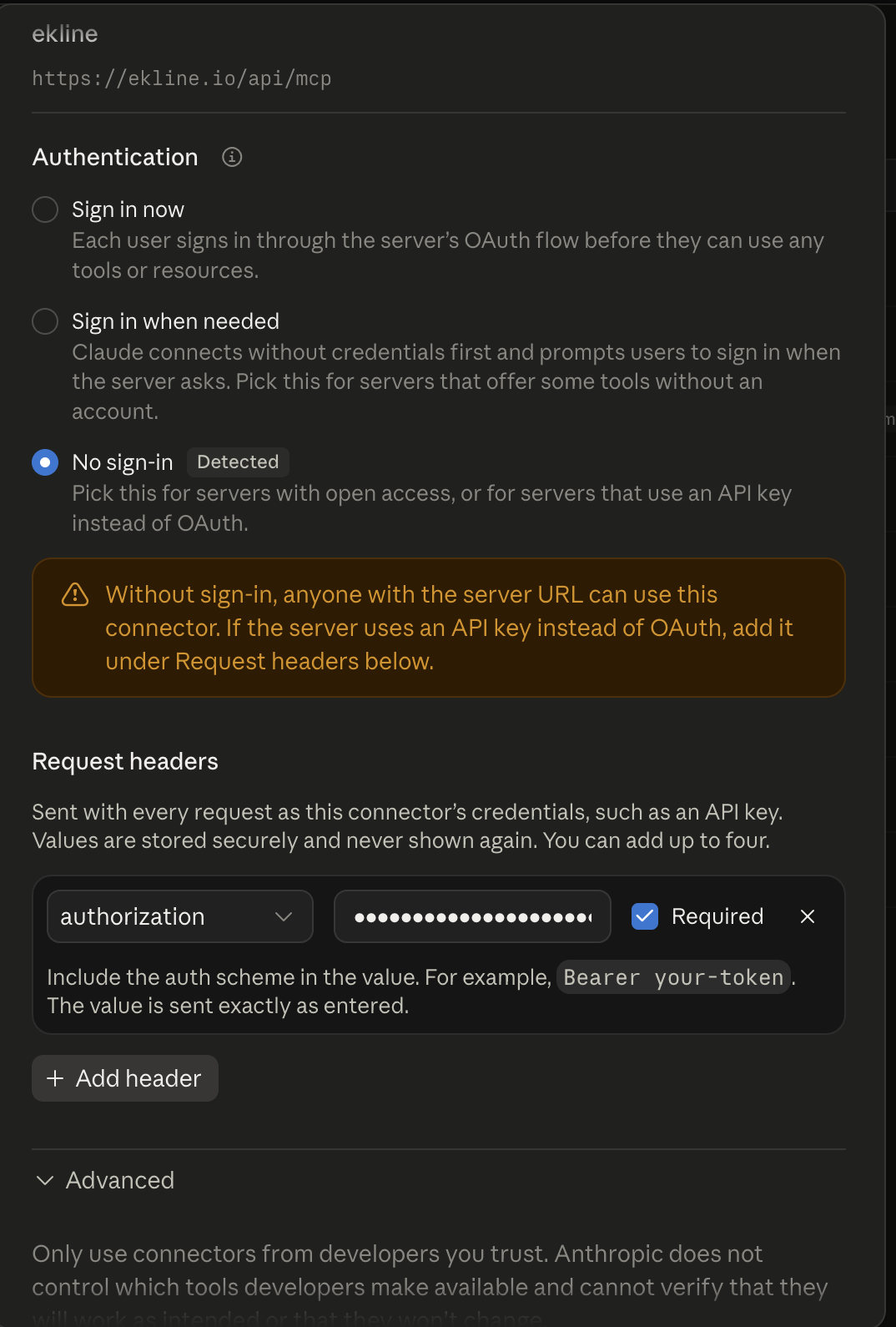
The EkLine tools then appear under the connector’s Tool permissions, which confirms your key resolved.
Start a session
Section titled “Start a session”Ask your client to use the create_session tool, and describe the task in your own words, including any references you have, such as a pull request, a ticket, or a doc path. For example:
Use EkLine to document the retry behavior added in PR #4821. The reasoning is in the linked ticket.
The tool takes two inputs:
| Input | Required | Description |
|---|---|---|
prompt | Yes | The task, in your own words, including the reasoning behind it. |
agent | No | Which agent runs the session: docs (the default) for documentation work, or marketing for a Marketing Agent session. |
create_session returns a session id and a link to follow the work in the app. The session appears in EkLine with you as its author.
Check how a session is going
Section titled “Check how a session is going”Ask your client to use the get_session_status tool with the session id that create_session returned. It reports the current status and the session’s most recent messages, so your client can tell you what the agent is working on rather than only that it is busy.
The status is one of:
| Status | Meaning |
|---|---|
working | The agent is still running the session. |
input_required | The agent is waiting for input. |
completed | The session finished successfully. |
failed | The session ran into a problem. |
cancelled | The session was stopped. |
Ask for the status whenever you want an update, including while the session is still running. A session keeps running to completion even after create_session returned, so checking in does not interrupt it.
To open the session yourself, follow the link in either tool’s response. Docs sessions open in the editor; marketing sessions open in the Marketing Agent.
Redirect a running session
Section titled “Redirect a running session”A session does not end when create_session returns. To correct a running session, add a requirement, or hand it a reference you left out, ask your client to use the send_session_message tool with the session id and your message:
Tell session abc123 to also cover the retry limits, which are in the linked ticket.
The tool takes two inputs:
| Input | Required | Description |
|---|---|---|
sessionId | Yes | The session to send the message to. Use the id that create_session returned, or copy it from your session list. |
prompt | Yes | What to tell the agent, in your own words, including the reasoning behind it. |
The message joins the session you named rather than starting a new one. If the session id is wrong, the tool reports that the session was not found instead of creating one.
Find your sessions
Section titled “Find your sessions”Ask your client to use the list_sessions tool to see your organization’s recent sessions: what each was asked to do, when it was last active, and the pull request it produced.
Use it before you start a new session, to check whether the work is already under way. Paste a pull request, merge request, Jira, or session link and the tool returns the sessions related to it, or describe what you are looking for in plain words.
list_sessions does not report whether a session is still running. It shows when a session was last active and whether someone marked it done. To read a session’s live status, call get_session_status with its id.
Ask about EkLine
Section titled “Ask about EkLine”Ask your client to use the search_ekline_docs tool with a question about EkLine, such as how a feature works or what a reviewer rule means. It returns the relevant sections of the product documentation and a link to each page, so your client answers from the docs rather than from memory.
Set up your organization
Section titled “Set up your organization”Two tools write settings that apply to your whole organization, not just the current session. EkLine gives this context to every agent session and review that follows.
Set the company profile
Section titled “Set the company profile”Ask your client to use the update_company_profile tool to set the context EkLine gives every session:
| Field | What it describes |
|---|---|
companyProfile | What your company does. |
keyFeatures | The product capabilities worth naming. |
audience | Who your documentation is written for. |
competitors | Who your company is compared against. |
toneAndVoice | How your documentation should sound. |
visualStyle | How images the agents make should look: your brand colours, one per line as a role and a hex code (Primary: #cb2e2f), then any notes on style. |
additionalContext | Anything else the agent should know. |
Each field you set replaces its current value in full. Fields you leave out keep their current value, and the tool reports what each changed field held before, so you can confirm the result. To clear a field, use EkLine settings.
See and change the company profile under Organization → Company profile in EkLine settings. If that page is not available in your organization, contact EkLine to enable it.
Add a rule
Section titled “Add a rule”Ask your client to use the create_rules tool to add a standing instruction the agents follow. Give it a name, the instruction itself, and the type of rule:
- A general rule (the default) applies to every task the agent works on.
- A review rule is applied to every documentation change the agent makes before it opens or updates a pull request.
You can also pass file globs, such as docs/**/*.mdx, to limit a rule to matching files. Omit them to apply the rule everywhere.
create_rules only adds rules. If you ask for a rule whose name your organization already uses, the tool refuses and names the existing rule rather than creating a duplicate. To change, disable, or delete a rule, use EkLine settings.
Manage rules under Docs Agent → Rules in EkLine settings. If that page is not available in your organization, contact EkLine to enable Docs Agent.
How keys and attribution work
Section titled “How keys and attribution work”- Keys are personal. A session you start through your key is recorded under your name in the app and in the audit trail, the same as a session you start in the web app.
- Membership is checked on every call. If you leave an organization, your keys for it stop working on the next request, and you do not need to revoke them first.
- Revoking takes effect immediately. To revoke a key, open your Personal API keys page and remove it. EkLine keeps the record so a past session still shows which key created it, but the key stops authenticating on its next use.
- Your key is never forwarded. EkLine exchanges it for your organization’s own token before reaching the agent, so the key identifies who is acting without ever leaving the server.
Supported clients
Section titled “Supported clients”| Client | Supported |
|---|---|
| Claude Code | Yes |
| Cursor | Yes |
| Claude on the web and Claude Desktop (custom connector with a request header) | Yes |
| ChatGPT (custom connector with a request header) | Yes |
| Other header-setting clients (VS Code, Windsurf, and others) | Yes |
Claude on the web and Claude Desktop connect through Claude’s custom connector dialog, which takes a request header, so EkLine works there with your key. See Connect from Claude on the web. ChatGPT connects the same way, through a custom connector with your key as a request header.
Troubleshooting
Section titled “Troubleshooting”| Symptom | Cause and fix |
|---|---|
| The client lists no EkLine tools | The key did not resolve. Check that the Authorization header reads Bearer followed by your full key, that the key is not revoked, and that you are still a member of the organization it was created for. A revoked, removed, or unknown key all produce an empty tool list. |
The claude mcp add command does not work in a browser | That command configures the Claude Code command line. In Claude on the web, add EkLine as a custom connector instead. See Connect from Claude on the web. |
create_session returns an error about reaching EkLine | EkLine could not be reached and no session was started. Try again. |
create_session reports a session was accepted but its id did not arrive | The session is running but its id did not return in time. Find it in your session list rather than starting another one. |
get_session_status says it could not read the session | EkLine could not be reached to read the session. The session may still be running, so try again rather than starting a new one. |
send_session_message says the session was not found | The session id is wrong, or the session belongs to another organization. Check the id in your session list. |
send_session_message returns an error about reaching EkLine | EkLine could not be reached and the message was not sent. Try again. |
Next steps
Section titled “Next steps”- Find a past session. Search your history or paste a link to reopen any session.
- Getting started with Docs Agent. Create your first document in the editor.
- Update and review. Resume a session to keep docs in sync with code changes.