

Create documentation from a demo video
This tutorial shows you how to turn a product demo video into written documentation. You upload a walkthrough, Docs Agent transcribes it and reads what happens on screen, and you guide the agent to produce a structured guide that matches your existing docs.
By the end, you have a step-by-step guide drafted from your video and opened as a pull request, ready for review.
Before you begin
Section titled “Before you begin”You need:
- An EkLine account with Docs Agent enabled.
- A repository connected to EkLine where the documentation lives.
- A demo or walkthrough video that shows the feature you want to document.
Your video must meet these limits:
| Requirement | Value |
|---|---|
| Formats | MP4, WebM, MOV, AVI, MPEG |
| Maximum size | 500 MB |
New to EkLine? Connect GitHub to EkLine first, then return here.
Step 1: Prepare your demo video
Section titled “Step 1: Prepare your demo video”A clear video produces a clear draft. Before you upload, check the following:
- Narrate the important actions. The agent transcribes the audio, so spoken explanations become part of the source material.
- Move at a steady pace. Pause briefly on each screen so the actions are easy to follow.
- Trim dead air. Cut long silences or unrelated tangents to keep the transcription focused.
- Confirm the format and size. Export as MP4, WebM, MOV, AVI, or MPEG, and keep the file under 500 MB.
A three-to-ten-minute screen recording with narration works well for a single feature.
Step 2: Open a session
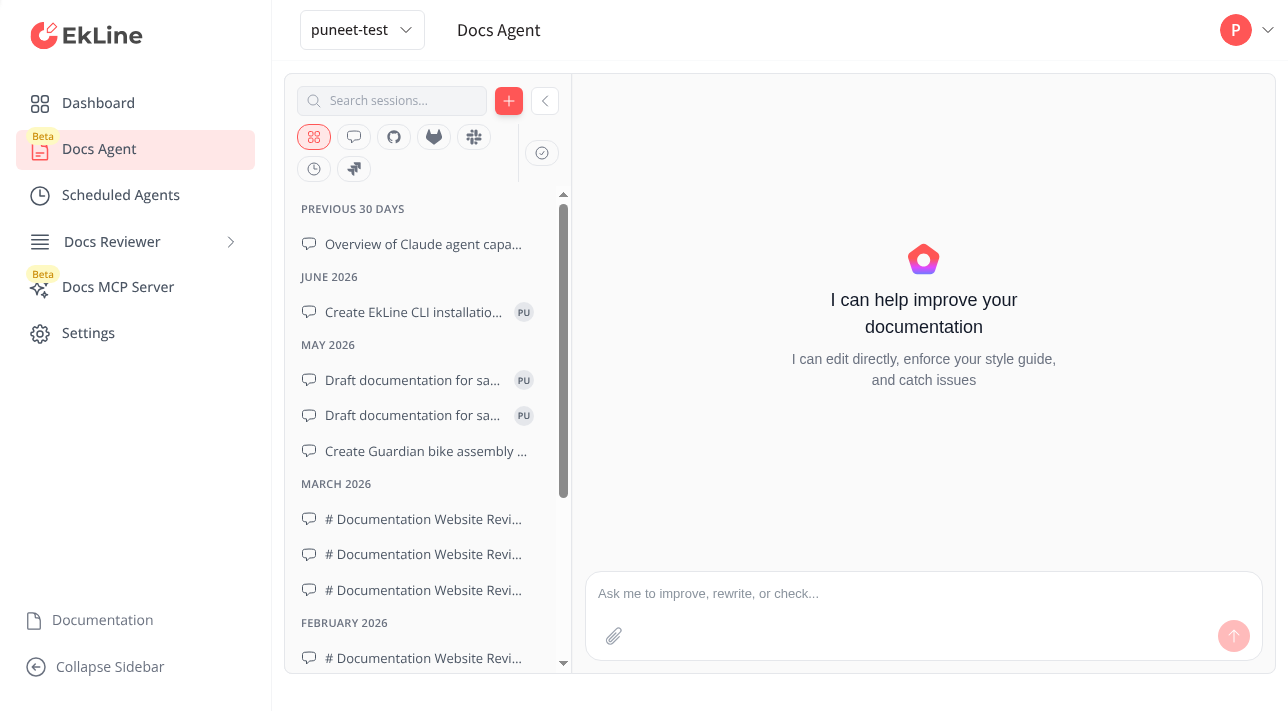
Section titled “Step 2: Open a session”- Log in to your EkLine dashboard.
- Click Docs Agent in the left navigation.
Step 3: Upload your video
Section titled “Step 3: Upload your video”- Click the attachment icon in the chat panel.
- Select your video file.
- Wait for processing. Transcription runs before the agent can use the video, and it may take a few minutes for a longer recording.
The video appears as an attachment in the chat panel once processing finishes.
Step 4: Describe the documentation you want
Section titled “Step 4: Describe the documentation you want”Tell the agent what to build from the video. Naming the document type and audience keeps the output focused.
Create a step-by-step tutorial from this product demo.Describe each screen and action shown, and write it for anew user trying the feature for the first time.Write a feature overview based on this walkthrough video.Focus on the key capabilities demonstrated and who theyhelp.Generate release notes from this demo of new features.Summarize each feature shown for end users.To match your existing docs, point the agent at a similar page:
Create a step-by-step tutorial from this demo video. Match thestructure and tone of docs/tutorials/getting-started.md.The agent analyzes the transcription and the on-screen content, then drafts the guide in the editor panel.
Step 5: Review the draft
Section titled “Step 5: Review the draft”Read the draft in the editor panel and check it against the video:
- The steps follow the same order as the demo.
- Screen names, button labels, and menu paths match what the video shows.
- The guide covers every action you demonstrated, with nothing invented.
Refine anything that is off by replying in the chat. For example:
Add a verification step after the install section that tells thereader what a successful setup looks like.The agent updates the draft in place. Repeat until the guide reads the way you want.
Step 6: Publish as a pull request
Section titled “Step 6: Publish as a pull request”- Enable View All Changes to see a diff of what the agent created.
- Click Raise PR to open a pull request with the new guide.
- The agent prefills a prompt in the chat. Press Enter to send it, or edit the prompt first to add instructions.
The agent opens the pull request and replies in the chat with a link where you continue the review on GitHub.
Verify
Section titled “Verify”Confirm the tutorial worked end to end:
- The uploaded video appears as an attachment in the chat panel.
- The editor panel shows a drafted guide that follows the demo.
- A pull request is open on your connected repository with the new file.
Troubleshooting
Section titled “Troubleshooting”| Issue | Solution |
|---|---|
| Upload is rejected | Check that the file is under 500 MB and in a supported format (MP4, WebM, MOV, AVI, MPEG). |
| Processing takes a long time | Transcription scales with video length. Wait a few minutes for longer recordings before sending your prompt. |
| The draft misses steps shown in the video | Narrate the missing actions in the recording, or describe them in a chat reply so the agent adds them. |
| Screen labels in the draft are wrong | Reply in the chat with the correct label and ask the agent to fix it. Attaching a screenshot of the screen helps. |
Summary
Section titled “Summary”You uploaded a demo video, guided Docs Agent to turn it into a structured guide, reviewed the draft against the recording, and opened a pull request. Your walkthrough is now written documentation your team can review and merge.
Next steps
Section titled “Next steps”- Create documentation — Generate docs from your codebase, screenshots, and external sources.
- Update and review documentation — Keep the guide in sync as the feature changes.
- Generate an API reference — Turn source code into reference documentation.