Docs Reviewer: Checks documentation before it merges, including what coding agents write: set it up as a GitHub Action, in GitLab CI or Bitbucket Pipelines, in VS Code, in Google Docs or with the CLI, configure it, and enforce a style guide on GitHub pull requests
# How EkLine Docs Reviewer works
> Docs Reviewer checks each docs change against your style guide in CI, VS Code, Google Docs, or the CLI, and comments on what to fix before it merges.
Docs Reviewer is EkLine’s check on every documentation change: it reviews the changed text against your style guide and comments on what to fix before the change merges. [Check your docs in CI ](/reviewer/quickstart/)Pick a setup and run your first review. ## What it checks [Section titled “What it checks”](#what-it-checks) Docs Reviewer reports each issue with a rule ID, such as `EK00031`, a severity (suggestion, warning, or error), and a message that says what to change. Its rules cover: * **Spelling and grammar**: typos, punctuation, repeated words, and American spelling. * **Tone and voice**: active voice, present tense, and contractions. * **Consistency**: product names and terms, dates, numbers, and units. * **Inclusive and respectful language**. * **Headings and sentences**: sentence-case headings, heading punctuation, and sentence length. * **Readability**: Flesch-Kincaid and Gunning fog scores. * **Links**: broken links and broken email addresses. Each rule has its own page in the [rules reference](/reviewer/rules/). Docs Reviewer can also review an OpenAPI spec for missing descriptions, missing constraints, and unused components. Most rules give the same result on every run. AI also filters out likely false positives: in VS Code, in CI on every pull request or merge request, and in the CLI when you pass `--ai-suggestions`, which also adds AI suggestions. ## It checks the change, whoever wrote it [Section titled “It checks the change, whoever wrote it”](#it-checks-the-change-whoever-wrote-it) In a pull request or merge request, Docs Reviewer checks the added and changed lines, not who wrote them. Docs from a coding agent such as Claude Code, Cursor, Codex, or GitHub Copilot get the same rules and the same review comments as docs a person writes. ## Where it runs [Section titled “Where it runs”](#where-it-runs) | Where | What you see | Set up | | ------------------- | ---------------------------------------------------------------------------------------------------------------------------------------------------------------------------------------------------------------------------------- | -------------------------------------------------------------------------------------------------------------------------------------------------------------------------- | | GitHub Action | Review comments on the changed lines of a pull request, or results in GitHub Checks | [Quickstart](/reviewer/quickstart/github-action/), [full guide](/reviewer/integrations/github-integration/), [run on a label](/reviewer/integrations/github-action-label/) | | GitLab CI | Discussions on the merge request, or comments on each commit | [GitLab CI](/reviewer/integrations/gitlab-integration/) | | Bitbucket Pipelines | A review step on every pull request and on `main` | [Bitbucket Pipelines](/reviewer/integrations/bitbucket-integration/) | | VS Code | Highlights when you open or save a file, with suggestions on hover. An [AI assistant](/reviewer/integrations/vscode-integration/#ai-assistant-ask-ekline), **Improve with EkLine AI**, rewrites text you select or drafts new text | [Quickstart](/reviewer/quickstart/vscode/), [full guide](/reviewer/integrations/vscode-integration/) | | Google Docs | A list of issues in the EkLine Chrome extension, each with a suggested change you can accept | [Google Docs](/reviewer/quickstart/google-docs/) | | CLI | Issues in your terminal, or a `.jsonl` or `.csv` file | [Quickstart](/reviewer/quickstart/cli/), [full guide](/reviewer/integrations/cli-integration/) | Every setup except Google Docs uses your integration token from **Settings** > **Organization** > **Access** in the [EkLine Dashboard](https://ekline.io/dashboard). In Google Docs, you sign in from **Extensions** > **EkLine**. ## Where to start [Section titled “Where to start”](#where-to-start) Choose by where your docs live: * **In a GitHub, GitLab, or Bitbucket repository**: run it in CI, so every pull request or merge request gets checked. * **Written locally**: add VS Code for feedback while you write, alongside a CI check. * **Outside a repository**, such as specs and proposals: use Google Docs. * **Another CI system, or a check before you push**: use the CLI. [Check your docs in CI](/reviewer/quickstart/) compares the setups. ## Configure it [Section titled “Configure it”](#configure-it) Set your standard once, and every review uses it: * [Configuration file](/reviewer/configuration/ignoring-rules/): `ekline.config.json` at your repository root sets the folders to check, the style guide, the rules to ignore, and the files to exclude. Commit it so every pull request and every teammate uses the same settings. * [Choose a style guide](/reviewer/configuration/style-guides/): Google (the default), Microsoft, or Marketing, or a custom standard. * [Dictionary](/reviewer/configuration/dictionary/): product names and jargon that the spell check accepts, saved in your EkLine account so every setup uses them. * [Framework support](/reviewer/configuration/framework-support/): checks the text inside MDX components for Mintlify, Astro, Fern, Docusaurus, and GitBook. * [OpenAPI spec review](/reviewer/configuration/openapi-review/): reviews an OpenAPI 2.0, 3.0, or 3.1 file. * [Style-guide enforcement](/reviewer/style-guide-enforcement/): the GitHub setup from start to finish, including blocking merges. In the app, you can also turn individual rules on or off in **Settings** > **Docs Agent** > **Reviewer Rules**, and list terms to avoid, each with the term to use instead, in **Settings** > **Organization** > **Terminology**. After a change on either page, select **Apply Configuration**. Changes take effect within 5 minutes. These settings and your dictionary apply when a review uses your own standard, not a built-in style guide. ## Docs Reviewer and the Docs Agent [Section titled “Docs Reviewer and the Docs Agent”](#docs-reviewer-and-the-docs-agent) The [Docs Agent](/agent/) writes and updates docs, such as READMEs, API references, and guides. Docs Reviewer checks them. Use the two together: the agent drafts, and Docs Reviewer catches style, terminology, and formatting issues before the change merges. ## FAQ [Section titled “FAQ”](#faq) ### Does it check whole files or only my changes? [Section titled “Does it check whole files or only my changes?”](#does-it-check-whole-files-or-only-my-changes) Only the added and changed lines, by default. To check every changed file in full, set `filter_mode` to `file`. The [GitHub Action full guide](/reviewer/integrations/github-integration/#filter-modes) lists every filter mode. ### Can it block a merge? [Section titled “Can it block a merge?”](#can-it-block-a-merge) Yes, on GitHub and GitLab. By default, Docs Reviewer posts its comments without failing the check. * **GitHub:** add `reviewdog_flags: -fail-level=error` to the action’s inputs, so the job fails when Docs Reviewer reports an issue at error severity. Then make the workflow’s job a required check in your branch protection rule. See [Style-guide enforcement](/reviewer/style-guide-enforcement/#block-merges-until-docs-pass). * **GitLab:** set `INPUT_REVIEWDOG_FLAGS: "-fail-level=error"` in the job’s variables, then turn on **Pipelines must succeed** for the project. See [Block merges until docs pass](/reviewer/integrations/gitlab-integration/#block-merges-until-docs-pass). ### Can I add my own rules? [Section titled “Can I add my own rules?”](#can-i-add-my-own-rules) You can turn rules on or off, add terms to avoid, and add words to your [dictionary](/reviewer/configuration/dictionary/) yourself. For a custom rule, contact . ### Is Docs Reviewer the same as Automatic PR review? [Section titled “Is Docs Reviewer the same as Automatic PR review?”](#is-docs-reviewer-the-same-as-automatic-pr-review) No. [Automatic PR review](/agent/automatic-pr-review/) is a Docs Agent feature: it reads a code pull request and decides whether your docs need an update. Docs Reviewer checks the wording of the docs change itself.
# Add words to your dictionary
> Add product names, acronyms, and jargon to your EkLine dictionary so the spell-check rule stops flagging them across every review.
EkLine’s spell-check rule flags words it doesn’t recognize. That’s useful for catching typos, but it also flags product names, acronyms, and domain jargon that are spelled correctly for your team. Add those words to your dictionary once, and EkLine treats them as valid everywhere you review. Your dictionary lives in your EkLine account, so it applies to every review surface connected to your token: the CLI, CI pipelines, the VS Code extension, and the PR bot. ## Before you start [Section titled “Before you start”](#before-you-start) You need: * An EkLine account with access to the [EkLine Dashboard](https://ekline.io/dashboard). * One review surface set up to test the result: the [CLI](/reviewer/quickstart/cli/), a [CI integration](/reviewer/quickstart/), or the [VS Code extension](/reviewer/integrations/vscode-integration/). * Reviews that use your organization’s own rules, not a built-in style guide. A built-in style guide (Google, Microsoft, or Marketing) uses EkLine’s shared rules, which don’t include your dictionary. In VS Code, set **Style Guide** to **Custom**. In the CLI and CI, leave `styleGuide` out of `ekline.config.json` and don’t pass `--style-guide`. *** ## Step 1: Open your dictionary [Section titled “Step 1: Open your dictionary”](#step-1-open-your-dictionary) 1. Go to the [EkLine Dashboard](https://ekline.io/dashboard). 2. Go to **Settings** > **Organization** > **Dictionary**, or open [ekline.io/dictionary](https://ekline.io/dictionary). The dictionary shows your saved words, each with a **Case-sensitive** toggle, and an empty row ready for a new entry. 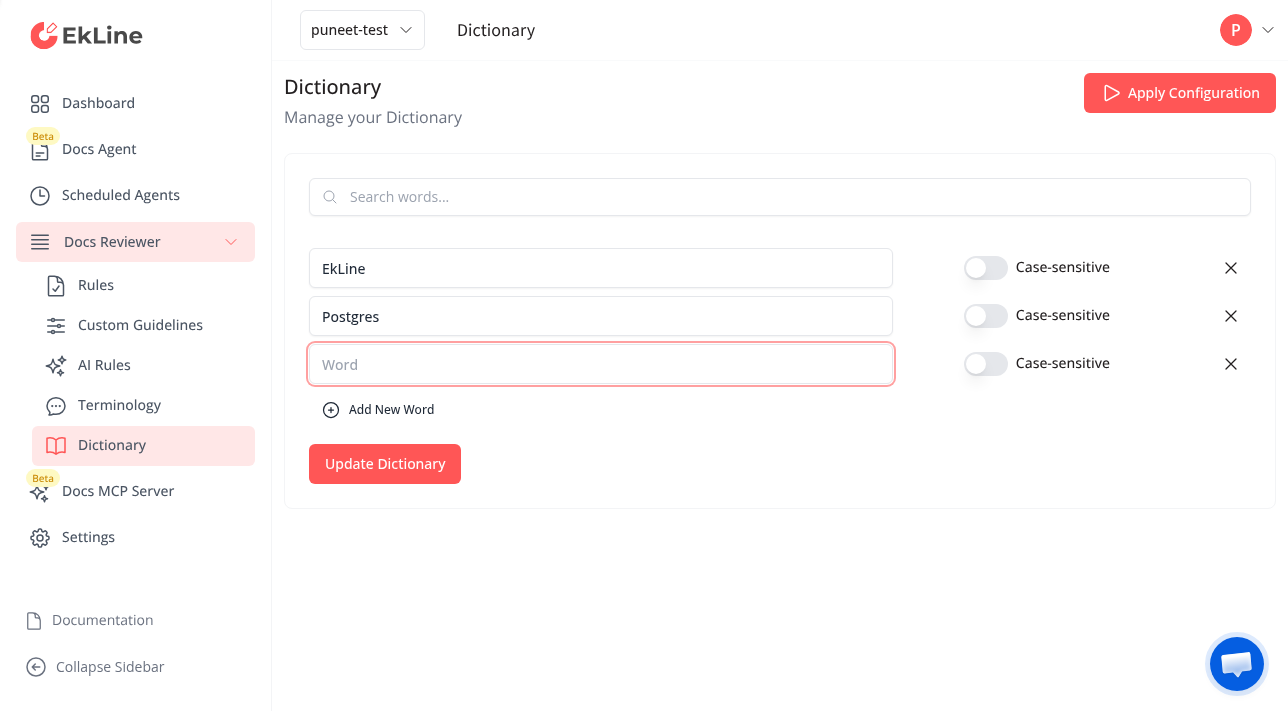 *** ## Step 2: Add your words [Section titled “Step 2: Add your words”](#step-2-add-your-words) 1. Enter a word in the **Word** field. You can add a multi-word term, such as a product name with spaces. 2. Set the **Case-sensitive** toggle for that word (see [Match exact capitalization](#match-exact-capitalization)). 3. Click **Add New Word** and repeat for each term you want EkLine to accept. 4. Click **Update Dictionary** to save your dictionary. 5. Click **Apply Configuration**, then click **Apply Configuration** again to confirm. **Update Dictionary** saves your words, and **Apply Configuration** sends them to your reviews. Changes take effect within 5 minutes. ### Match exact capitalization [Section titled “Match exact capitalization”](#match-exact-capitalization) The **Case-sensitive** toggle controls how EkLine matches a word: | Toggle | Behavior | Example | | ------------- | ------------------------------------------------------------------------------------------ | ----------------------------------------------------------------- | | Off (default) | EkLine accepts the word in any capitalization. | `kubernetes`, `Kubernetes`, and `KUBERNETES` all pass. | | On | EkLine accepts only the exact spelling you enter. Other capitalizations are still checked. | Adding `EkLine` accepts `EkLine`, but `ekline` is still reviewed. | Turn the toggle on when the correct form of a word depends on its capitalization, so EkLine keeps flagging the wrong casing. *** ## Verify that EkLine accepts your words [Section titled “Verify that EkLine accepts your words”](#verify-that-ekline-accepts-your-words) Run a review against content that has one of the words you added, and confirm EkLine no longer flags it. * CLI ```bash ekline-cli --ek-token YOUR_TOKEN --content-directory ./docs ``` The word no longer appears in the output with the rule ID `EK00300`. * VS Code Set **Style Guide** to **Custom** first. Then open a file that uses the word and run **EkLine: Review current document** from the Command Palette (`Cmd/Ctrl` + `Shift` + `P`). The word no longer appears in the **EkLine Suggestions** panel. If the word still gets flagged, see [Troubleshooting](#troubleshooting). *** ## Troubleshooting [Section titled “Troubleshooting”](#troubleshooting) ### EkLine still flags a word I added [Section titled “EkLine still flags a word I added”](#ekline-still-flags-a-word-i-added) * Confirm you clicked **Update Dictionary** and then **Apply Configuration**. Reviews use your words only after you apply them, and changes take effect within 5 minutes. * Check which style guide the review uses. A built-in style guide (Google, Microsoft, or Marketing) doesn’t use your dictionary. In VS Code, set **Style Guide** to **Custom**. In the CLI and CI, remove `styleGuide` from `ekline.config.json` and don’t pass `--style-guide`. * Check the **Case-sensitive** toggle. If it’s on, EkLine accepts only the exact capitalization you entered. Turn it off to accept every capitalization. * Run the review again. EkLine applies dictionary changes on the next review, not to results from a review that already ran. ### The same word appears twice [Section titled “The same word appears twice”](#the-same-word-appears-twice) EkLine prevents duplicate entries. If you see a duplicate error, remove the extra row with the **X** button next to it, then save. ### Enforce a preferred term instead of accepting a word [Section titled “Enforce a preferred term instead of accepting a word”](#enforce-a-preferred-term-instead-of-accepting-a-word) The dictionary accepts a word but doesn’t suggest a replacement. To steer writers from one term to another, for example from `e-mail` to `email`, add the pair under **Settings** > **Organization** > **Terminology**: the term to avoid and its alternative. Then select **Apply Configuration**; changes take effect within 5 minutes. *** ## Next steps [Section titled “Next steps”](#next-steps) * [Ignoring rules](/reviewer/configuration/ignoring-rules/): turn off a rule or skip specific content. * [Choose and apply a style guide](/reviewer/configuration/style-guides/): set the writing standard EkLine enforces. * [CLI reference](/reviewer/integrations/cli-integration/): configuration options and flags.
# Documentation framework support
> Configure EkLine for your documentation framework to improve MDX (Markdown + JSX) file analysis.
Tell EkLine which documentation framework you use, and it checks the text inside that framework’s MDX components. ## Why framework support matters [Section titled “Why framework support matters”](#why-framework-support-matters) Frameworks like Mintlify use custom MDX components for layout. These components often hold prose you want checked. **The problem:** Without the `framework` option, EkLine may skip the text inside custom components. **The solution:** Set the `framework` option. EkLine then checks the text inside the framework’s components. ### Example: Mintlify Note component [Section titled “Example: Mintlify Note component”](#example-mintlify-note-component) **Without framework configuration:** ```mdx Users shoud configure there API keys before proceeding. ``` EkLine might skip this content entirely, missing two spelling and grammar errors. **With `framework: "mintlify"`:** EkLine detects that `` is a prose component and checks the content, catching: * “shoud” → “should” * “there” → “their” *** ## Supported frameworks [Section titled “Supported frameworks”](#supported-frameworks) EkLine accepts these `framework` values: | Framework | Value | | ----------------------------------- | ------------ | | [Mintlify](https://mintlify.com) | `mintlify` | | [Astro](https://astro.build) | `astro` | | [Fern](https://buildwithfern.com) | `fern` | | [Docusaurus](https://docusaurus.io) | `docusaurus` | | [GitBook](https://gitbook.com) | `gitbook` | *** ## Mintlify [Section titled “Mintlify”](#mintlify) EkLine checks the prose inside [Mintlify](https://mintlify.com) components. ### Configuration [Section titled “Configuration”](#configuration) Create an `ekline.config.json` file in your project root: * Config file ekline.config.json ```json { "contentDirectory": ["."], "framework": "mintlify", "excludeDirectories": ["node_modules"] } ``` * CLI ```bash ekline-cli --ek-token YOUR_TOKEN --framework mintlify ``` ### Prose components [Section titled “Prose components”](#prose-components) EkLine checks content inside these Mintlify components: * ``, ``, ``, `` — Callout boxes * `` — Card components with content * ``, `` — Expandable sections * `` — Changelog entries * ``, `` — Step-by-step instructions * `` — Expandable content * ``, `` — Tabbed content ### Skipped code components [Section titled “Skipped code components”](#skipped-code-components) EkLine skips these components because they contain code, not prose: * `` — Code examples * `` — Reusable code snippets * `` — Image and video frames ### Example configuration [Section titled “Example configuration”](#example-configuration) For a typical Mintlify project, your `ekline.config.json` might look like: ekline.config.json ```json { "contentDirectory": ["."], "framework": "mintlify", "styleGuide": "google", "excludeDirectories": ["node_modules", "api-reference"], "excludeFiles": ["mint.json"] } ``` *** ## Other frameworks [Section titled “Other frameworks”](#other-frameworks) For Astro, Fern, Docusaurus, and GitBook, create an `ekline.config.json` file and set the `framework` option: * Astro ekline.config.json ```json { "contentDirectory": ["src/content/docs"], "framework": "astro", "excludeDirectories": ["node_modules", "dist"] } ``` * Fern ekline.config.json ```json { "contentDirectory": ["fern/docs"], "framework": "fern", "excludeDirectories": ["node_modules"] } ``` * Docusaurus ekline.config.json ```json { "contentDirectory": ["docs"], "framework": "docusaurus", "excludeDirectories": ["node_modules", "build"] } ``` * GitBook ekline.config.json ```json { "contentDirectory": ["."], "framework": "gitbook", "excludeDirectories": ["node_modules"] } ``` *** ## Troubleshooting [Section titled “Troubleshooting”](#troubleshooting) ### Content inside components not being checked [Section titled “Content inside components not being checked”](#content-inside-components-not-being-checked) 1. **Check that `framework` is set in your `ekline.config.json` file:** ekline.config.json ```json { "framework": "mintlify" } ``` 2. **Check for typos — the value is case-sensitive:** Correct: ```json { "framework": "mintlify" } ``` Wrong: ```json { "framework": "Mintlify" } ``` 3. **Check that the component holds prose:** Not every component holds prose. EkLine skips code blocks, images, and similar components. ### Framework not recognized [Section titled “Framework not recognized”](#framework-not-recognized) If you see a warning that the framework value isn’t recognized, use one of the supported values: `mintlify`, `astro`, `fern`, `docusaurus`, or `gitbook`. *** ## Request a framework [Section titled “Request a framework”](#request-a-framework) Need a different framework or specific components? [Contact us](mailto:support@ekline.io) and tell us how your docs are set up. *** ## Next steps [Section titled “Next steps”](#next-steps) * [CLI Reference](/reviewer/integrations/cli-integration/) — All CLI options and configuration * [GitHub Actions](/reviewer/integrations/github-integration/) — Set up automated PR reviews * [Custom Rules](https://ekline.io/guidelines/rules) — Configure style guides and terminology
# EkLine configuration file reference
> Reference for ekline.config.json — every configuration key with its type, default, and behavior, including how to ignore rules and exclude files or directories.
The EkLine CLI reads its settings from an `ekline.config.json` file. Store the file in your project to keep review settings consistent across your team and your CI/CD pipelines, instead of repeating flags on every run. For installation and command-line usage, see the [CLI integration guide](/reviewer/integrations/cli-integration/). ## File location and discovery [Section titled “File location and discovery”](#file-location-and-discovery) The configuration file must be named `ekline.config.json` and contain a single JSON object: ```json { "contentDirectory": ["docs"], "styleGuide": "google", "ignore": ["EK00001", "EK00004"], "excludeDirectories": ["node_modules", "dist"] } ``` EkLine searches for the file starting from the current working directory and walks up the directory tree to the filesystem root. The first valid file it finds is used. This supports monorepos where the configuration lives at the repository root: ```text my-monorepo/ ├── ekline.config.json ← Found and used ├── packages/ │ └── docs/ │ └── guide.md ← Running the CLI here still finds the root config └── apps/ └── web/ ``` Caution Never store your `ekToken` in `ekline.config.json`. Pass it with the `--ek-token` flag instead, and use your platform’s secret management in CI/CD. EkLine warns you if it finds a token in the configuration file. ## Configuration precedence [Section titled “Configuration precedence”](#configuration-precedence) Command-line arguments override values in the configuration file, so you can share one file and customize individual runs: ```bash # Uses the config file, but overrides styleGuide for this run ekline-cli --ek-token YOUR_TOKEN --style-guide microsoft ``` Order of precedence, from highest to lowest: 1. Command-line arguments 2. `ekline.config.json` 3. Default values ## Configuration keys [Section titled “Configuration keys”](#configuration-keys) | Key | Type | Default | Description | | -------------------- | ---------- | -------- | --------------------------------------------------------------------------------- | | `contentDirectory` | `string[]` | `["."]` | Directories or files to scan for documentation. | | `ignore` | `string[]` | — | Rule IDs to disable across the whole project. | | `excludeFiles` | `string[]` | — | Files to exclude from review. | | `excludeDirectories` | `string[]` | — | Directories to exclude from review. | | `styleGuide` | `string` | — | Style guide to enforce: `google`, `microsoft`, or `marketing`. | | `framework` | `string` | — | Documentation framework: `mintlify`, `astro`, `fern`, `docusaurus`, or `gitbook`. | | `openapiSpec` | `string` | — | Path to an OpenAPI spec file to review. | | `changedFiles` | `string[]` | — | Restrict the review to a specific list of files. | | `changedLines` | `string` | — | Path to a JSON file mapping changed files to line numbers. | | `aiSuggestions` | `boolean` | `false` | Enable AI suggestions. | | `suggestion` | `boolean` | `true` | Include suggestions in file output. | | `output` | `string` | Terminal | Output file path. The extension selects the format. | *** ## Content selection [Section titled “Content selection”](#content-selection) ### contentDirectory [Section titled “contentDirectory”](#contentdirectory) `string[]` — default `["."]` One or more directories or files to scan, relative to where you run the CLI. Paths that don’t exist are skipped with a warning. ```json { "contentDirectory": ["docs", "guides", "packages/sdk/docs"] } ``` ### changedFiles [Section titled “changedFiles”](#changedfiles) `string[]` Restrict the review to a specific list of files. This is useful in CI to check only the files touched by a pull request. ```json { "changedFiles": ["docs/guide.md", "docs/api.md"] } ``` ### changedLines [Section titled “changedLines”](#changedlines) `string` Path to a JSON file that maps changed files to their changed line numbers. EkLine reviews only those lines, which speeds up checks on large repositories. ```json { "changedLines": "git-diff-changes.json" } ``` *** ## Ignoring rules [Section titled “Ignoring rules”](#ignoring-rules) When EkLine flags content you want to keep, you have three options: | Situation | Recommended action | | ---------------------------------- | ------------------------------------------------------- | | EkLine is right — fix the issue | Edit your content | | False positive on specific content | Use an [inline ignore comment](#inline-ignore-comments) | | Rule doesn’t apply to your project | Disable the rule with `ignore` | ### ignore [Section titled “ignore”](#ignore) `string[]` Rule IDs to disable across your entire project. These rules are not checked anywhere. ```json { "contentDirectory": ["docs"], "ignore": ["EK00001", "EK00004"] } ``` To disable a rule for specific content only, use an [inline ignore comment](#inline-ignore-comments) instead. #### Finding the rule ID [Section titled “Finding the rule ID”](#finding-the-rule-id) When EkLine flags an issue, the rule ID appears with it. In a pull request comment, it follows the message: ```text 'responce' could be a typo. Check the spelling. (EK00300) ``` In CLI output, it is in the **Rule Id** column. The rule ID, such as `EK00300`, is what you add to `ignore` or to an inline comment to target a specific rule. *** ## Excluding files and directories [Section titled “Excluding files and directories”](#excluding-files-and-directories) Use `excludeFiles` and `excludeDirectories` to skip content that shouldn’t be reviewed at all, such as generated files. Use `ignore` for rules that don’t fit your style, and use [inline comments](#inline-ignore-comments) for specific exceptions within otherwise-checked content. ### excludeFiles [Section titled “excludeFiles”](#excludefiles) `string[]` Files to exclude from review, relative to the directory where you run EkLine. Include the content directory in the path. ```json { "contentDirectory": ["docs"], "excludeFiles": ["docs/CHANGELOG.md", "docs/generated/api.md"] } ``` ### excludeDirectories [Section titled “excludeDirectories”](#excludedirectories) `string[]` Directories to exclude from review, relative to the directory where you run EkLine. A directory and everything under it is skipped. ```json { "contentDirectory": ["docs"], "excludeDirectories": ["node_modules", "docs/api-reference/generated"] } ``` *** ## Style and framework [Section titled “Style and framework”](#style-and-framework) ### styleGuide [Section titled “styleGuide”](#styleguide) `string` — one of `google`, `microsoft`, `marketing` The public style guide to enforce. An unrecognized value is ignored with a warning. ```json { "styleGuide": "google" } ``` For details, see [Choose and apply a style guide](/reviewer/configuration/style-guides/). ### framework [Section titled “framework”](#framework) `string` — one of `mintlify`, `astro`, `fern`, `docusaurus`, `gitbook` The documentation framework, which improves MDX analysis. Set it so EkLine checks prose inside framework components such as `` and ``. An unrecognized value is ignored with a warning. ```json { "framework": "mintlify" } ``` For details, see [Framework support](/reviewer/configuration/framework-support/). ### openapiSpec [Section titled “openapiSpec”](#openapispec) `string` Path to an OpenAPI spec file. EkLine reviews the spec itself. See [Review your OpenAPI spec](/reviewer/configuration/openapi-review/). ```json { "openapiSpec": "openapi.yaml" } ``` *** ## Suggestions and output [Section titled “Suggestions and output”](#suggestions-and-output) ### aiSuggestions [Section titled “aiSuggestions”](#aisuggestions) `boolean` — default `false` Enable AI suggestions. ```json { "aiSuggestions": true } ``` ### suggestion [Section titled “suggestion”](#suggestion) `boolean` — default `true` Include suggestions in file output. Suggestions appear in `.jsonl` and `.csv` output, not in terminal output. ```json { "suggestion": false } ``` ### output [Section titled “output”](#output) `string` — default: terminal Output file path. The file extension selects the format: `.jsonl` or `.csv`. Without this key, results print to the terminal. ```json { "output": "ekline-report.jsonl" } ``` *** ## Inline ignore comments [Section titled “Inline ignore comments”](#inline-ignore-comments) Inline comments ignore rules for specific content without changing your configuration file. They are the per-content companion to the `ignore` key. ### File format syntax [Section titled “File format syntax”](#file-format-syntax) The comment syntax varies by file type. EkLine detects the format automatically. * Markdown / HTML ```markdown ``` **File types:** `.md`, `.markdown`, `.html`, `.htm`, `.xml`, `.dita`, `.ditamap` * MDX JSX comments (preferred): ```mdx {/* ekline-ignore-file */} {/* ekline-ignore-start */} {/* ekline-ignore-end */} {/* ekline-ignore-next-line EK00001 */} {/* ekline-ignore-line */} ``` HTML comments also work in MDX files. **File types:** `.mdx` * AsciiDoc ```asciidoc // ekline-ignore-file // ekline-ignore-start // ekline-ignore-end // ekline-ignore-next-line EK00001 ``` AsciiDoc comments must occupy a whole line, so same-line suppression with `ekline-ignore-line` is not available for AsciiDoc. Use `ekline-ignore-next-line` on the line above instead. **File types:** `.adoc`, `.asciidoc` * YAML front matter Inside the leading `---` fence, use YAML’s `#` comment syntax: ```markdown --- # ekline-ignore-next-line EK00001 title: Choose your favourite colour description: A guide # ekline-ignore-line EK00002 --- ``` EkLine analyzes front matter field values (such as `title` and `description`), so those fields can raise issues. HTML and JSX comments are not valid inside a YAML front matter block, so ignore comments there use `#` instead. **File types:** `.md`, `.markdown`, `.mdx` (inside the leading `---` fence only) ### Scope reference [Section titled “Scope reference”](#scope-reference) | Scope | Syntax | | ----------- | ------------------------------------------------------------- | | Entire file | `` | | Section | `` … `` | | Next line | `` | | Same line | `` | Add rule IDs to target specific rules: `` Add a reason after `--` to document why: `` ### Ignoring the next line [Section titled “Ignoring the next line”](#ignoring-the-next-line) The most common pattern. Place the comment on the line before the content you want to ignore. ```markdown This line won't be checked. This line will be checked normally. ``` **With specific rules:** ```markdown Only those rules are ignored. Other rules still apply to this line. ``` ### Ignoring the current line [Section titled “Ignoring the current line”](#ignoring-the-current-line) Add the comment at the end of the line you want to ignore. ```markdown The `oldParam` field is deprecated. ``` ### Ignoring a section [Section titled “Ignoring a section”](#ignoring-a-section) Wrap content in start and end comments to ignore a block. ```markdown Regular checked content here. Everything in this section is ignored. Multiple lines, code blocks, whatever you need. Back to checked content. ``` **With specific rules:** ```markdown Only the specified rules are ignored in this section. ``` ### Ignoring an entire file [Section titled “Ignoring an entire file”](#ignoring-an-entire-file) Place the comment anywhere in the file. The top is recommended. ```markdown # Auto-generated reference All content in this file is ignored. ``` **With specific rules:** ```markdown ``` ### Adding reasons [Section titled “Adding reasons”](#adding-reasons) Document why you’re ignoring a rule. This helps future maintainers, including yourself, understand the decision. ```markdown ``` ### Inline comment behavior [Section titled “Inline comment behavior”](#inline-comment-behavior) * **Case insensitive:** `EKLINE-IGNORE-FILE` works the same as `ekline-ignore-file`. * **Flexible whitespace:** Extra spaces are tolerated. * **Code blocks excluded:** Comments inside fenced code blocks (` ``` `) are not processed. * **Unclosed sections:** An `ekline-ignore-start` without an `ekline-ignore-end` extends to the end of the file. * **Front matter scope:** The `#` comment syntax works only inside the leading `---` fence of markdown-family files. A body heading like `# ekline-ignore-file` is treated as a heading, not an ignore comment. *** ## Common scenarios [Section titled “Common scenarios”](#common-scenarios) ### Quotations you can’t change [Section titled “Quotations you can’t change”](#quotations-you-cant-change) Customer quotes, legal text, or historical references often violate style rules intentionally. ```markdown "I definately love this product!" - Jane D. ``` ### Legacy API naming [Section titled “Legacy API naming”](#legacy-api-naming) Old APIs sometimes have typos baked into their contracts. ```markdown The endpoint returns a `responce` object for backwards compatibility. ``` ### Code examples with intentional errors [Section titled “Code examples with intentional errors”](#code-examples-with-intentional-errors) Documentation showing what not to do, or demonstrating error messages. ````markdown ```js // DON'T do this - the parameter is misspelled fetch('/api?qurey=test') ``` ```` ### Required passive voice [Section titled “Required passive voice”](#required-passive-voice) Legal text and formal contracts sometimes require passive voice. ```markdown The agreement must be signed by the customer before activation. ``` ### Auto-generated files [Section titled “Auto-generated files”](#auto-generated-files) For files generated from OpenAPI specs or other sources, use `excludeFiles` in your configuration rather than an inline comment. That way you don’t need to preserve the comment when regenerating the file. ```json { "excludeFiles": ["api-reference/generated.md"] } ``` ### Project-wide rule decisions [Section titled “Project-wide rule decisions”](#project-wide-rule-decisions) If you find yourself adding the same inline ignore repeatedly, disable the rule in the configuration file instead. ```json { "ignore": ["EK00042"] } ``` *** ## Example configurations [Section titled “Example configurations”](#example-configurations) **Minimal:** ```json { "contentDirectory": ["docs"] } ``` **Mintlify project:** ```json { "contentDirectory": ["."], "framework": "mintlify", "excludeDirectories": ["node_modules", "api-reference"], "styleGuide": "google" } ``` **Monorepo with many doc sources:** ```json { "contentDirectory": ["docs", "packages/sdk/docs", "guides"], "excludeFiles": ["CHANGELOG.md"], "ignore": ["EK00042"] } ``` **Full configuration:** ```json { "contentDirectory": ["docs"], "framework": "astro", "styleGuide": "microsoft", "ignore": ["EK00001", "EK00004"], "excludeDirectories": ["node_modules", "dist", ".astro"], "excludeFiles": ["README.md"], "output": "ekline-report.jsonl", "aiSuggestions": true } ``` *** ## Best practices [Section titled “Best practices”](#best-practices) ### Prefer targeted ignores [Section titled “Prefer targeted ignores”](#prefer-targeted-ignores) Instead of ignoring all rules, target the specific rule causing the issue. ```markdown ``` ### Always add reasons [Section titled “Always add reasons”](#always-add-reasons) A reason takes seconds to write and saves minutes of confusion later. ```markdown ``` ### Review ignores periodically [Section titled “Review ignores periodically”](#review-ignores-periodically) Inline ignores can become stale. When updating documentation: * Check whether the ignored content still exists. * Check whether the reason still applies. * Remove ignores that are no longer needed. *** ## Related [Section titled “Related”](#related) * [Choose and apply a style guide](/reviewer/configuration/style-guides/) — Pick and enforce a writing standard for the `styleGuide` key * [Add words to your dictionary](/reviewer/configuration/dictionary/) — Accept product names and jargon instead of ignoring the spell-check rule * [CLI integration](/reviewer/integrations/cli-integration/) — Install the CLI and run reviews * [Framework support](/reviewer/configuration/framework-support/) — MDX component handling for documentation frameworks
# Review your OpenAPI spec
> Lint your OpenAPI specification with EkLine to catch missing descriptions, security gaps, and unused components before your API docs ship.
Your API reference is only as good as the OpenAPI specification behind it. When operations lack descriptions or schemas omit constraints, the rendered docs leave developers guessing. EkLine reviews your OpenAPI spec the same way it reviews prose — flagging issues before they reach your published reference. ## Goal [Section titled “Goal”](#goal) Run an EkLine review against an OpenAPI specification file and fix the issues it reports. ## What EkLine checks [Section titled “What EkLine checks”](#what-ekline-checks) EkLine analyzes the structure and content of your spec, not only its syntax. A review covers three areas: | Area | What EkLine looks for | | ----------------------- | ----------------------------------------------------------------------------------------------------------------------------------------------------------------------------------------------------------------------------------- | | Descriptions | Every operation (a path plus method, such as `GET /users`) and every reusable component has a clear, meaningful description. EkLine flags generic or empty descriptions. | | Security best practices | String properties define a `maxLength` and a `format`, `pattern`, `enum`, or `const`. Arrays define `maxItems`. Integers define a `format` and `minimum`/`maximum`. These constraints help prevent oversized or malformed payloads. | | Structure | The spec contains no unused components, no broken references, and no executable code inside Markdown descriptions. | ## Prerequisites [Section titled “Prerequisites”](#prerequisites) Before you start, make sure you have: * The EkLine CLI installed. See [the CLI guide](/reviewer/integrations/cli-integration/) to download the binary. * Your EkLine token. Get it from **Settings > Organization > Access** in the [EkLine Dashboard](https://ekline.io/dashboard). * An OpenAPI specification file in JSON (`.json`) or YAML (`.yaml`, `.yml`) format. EkLine supports OpenAPI 2.0, 3.0, and 3.1. ## Steps [Section titled “Steps”](#steps) 1. **Point EkLine at your spec.** Add the `openapiSpec` option to your `ekline.config.json`, or pass the `--openapi-spec` flag when you run the CLI. * Config file ekline.config.json ```json { "contentDirectory": ["docs"], "openapiSpec": "openapi.yaml" } ``` * CLI flag ```bash ekline-cli --ek-token YOUR_TOKEN --content-directory ./docs --openapi-spec openapi.yaml ``` The `--openapi-spec` flag also accepts the short form `-oas`. 2. **Run the review.** ```bash ekline-cli --ek-token YOUR_TOKEN ``` EkLine reviews your documentation directories and your OpenAPI spec in the same run. Results print to the terminal by default. 3. **Read the results.** Each issue names the location in your spec and explains the problem. For example, an operation without a description reports: ```text openapi.yaml:42 Operation "GET /users" is missing a description. ``` 4. **Fix an issue.** Add the missing detail to your spec. For the example above, give the operation a description that explains what it does: openapi.yaml ```yaml paths: /users: get: summary: List users description: Returns a paginated list of active users in your organization. responses: '200': description: A list of users. ``` 5. **Re-run the review to confirm the fix.** ```bash ekline-cli --ek-token YOUR_TOKEN ``` The issue you fixed no longer appears, and the total issue count drops. ## Verification [Section titled “Verification”](#verification) Your review is working when EkLine reports issues that reference your spec file by name and line, such as `openapi.yaml:42`. After you add the missing descriptions and constraints, re-run the review and confirm the count decreases. ## Add the review to your pipeline [Section titled “Add the review to your pipeline”](#add-the-review-to-your-pipeline) To catch spec issues on every change, run the same CLI command in CI. Store your token as a pipeline secret and keep the `openapiSpec` value in your committed `ekline.config.json` so every run uses it. ```bash ekline-cli --ek-token "$EK_TOKEN" ``` For a complete pipeline setup, see the [GitHub Action quickstart](/reviewer/quickstart/github-action/). ## Troubleshooting [Section titled “Troubleshooting”](#troubleshooting) ### Invalid file type [Section titled “Invalid file type”](#invalid-file-type) EkLine accepts only `.json`, `.yaml`, and `.yml` specs. Confirm your file uses one of these extensions. ### File too large [Section titled “File too large”](#file-too-large) A spec must be 10 MB or smaller. Split a large spec into multiple files, or remove unused components to reduce its size. ### Spec fails to parse [Section titled “Spec fails to parse”](#spec-fails-to-parse) If EkLine reports that your spec is invalid, the file does not match the OpenAPI structure. Validate it against the OpenAPI 2.0, 3.0, or 3.1 schema and fix any structural errors before reviewing. ### Spec is not reviewed [Section titled “Spec is not reviewed”](#spec-is-not-reviewed) If you use `changedFiles` or a pull request workflow, EkLine reviews the spec only when the spec file changes. Edit the spec, or run the CLI without the changed-files option to force a full review. ### Too many findings to address at once [Section titled “Too many findings to address at once”](#too-many-findings-to-address-at-once) Spec findings have no rule ID, so the `ignore` option and inline ignore comments don’t apply to them. Fix the findings in batches, or remove `openapiSpec` from your configuration to skip the spec review until you’re ready. ## Next steps [Section titled “Next steps”](#next-steps) * [Ignoring rules](/reviewer/configuration/ignoring-rules) — Handle false positives and intentional exceptions. * [CLI reference](/reviewer/integrations/cli-integration/) — All configuration options and flags. * [Framework support](/reviewer/configuration/framework-support) — Improve checks for MDX-based docs.
# Choose and apply a style guide
> Pick the right EkLine style guide for your content and apply it consistently across the CLI, CI pipelines, and VS Code.
A style guide tells EkLine which writing standard to enforce. EkLine ships with three built-in style guides and supports a custom standard built from your own rules. ## Before you start [Section titled “Before you start”](#before-you-start) You need: * An EkLine account and integration token. Get yours from **Settings > Organization > Access** in the [EkLine Dashboard](https://ekline.io/dashboard). * One review surface set up: the [CLI](/reviewer/quickstart/cli/), a [CI integration](/reviewer/quickstart/), or the [VS Code extension](/reviewer/integrations/vscode-integration/). *** ## Step 1: Choose a style guide [Section titled “Step 1: Choose a style guide”](#step-1-choose-a-style-guide) EkLine enforces one style guide at a time. Pick the one that matches the content you write most often. | Style guide | Value | Best for | | ----------- | ----------- | ----------------------------------------------------------------------------------------------------------------- | | Google | `google` | Developer documentation, API guides, READMEs, and tutorials. Concise and task-focused. | | Microsoft | `microsoft` | Product documentation, UI-heavy guides, and enterprise content. Warm and professional. | | Marketing | `marketing` | Landing pages, blog posts, and release announcements. Brand-voice and promotional copy. | | Custom | — | A standard built from your own rules and terminology. Available in VS Code. In the CLI, leave `styleGuide` unset. | A built-in style guide uses EkLine’s shared rules. Your own rule settings, terminology, and dictionary apply only when you use Custom. To see the individual rules each style guide enforces, browse the [rules reference](/reviewer/rules/). *** ## Step 2: Apply it in the config file [Section titled “Step 2: Apply it in the config file”](#step-2-apply-it-in-the-config-file) For the CLI and any pipeline that runs the CLI, set the style guide once in `ekline.config.json`. Every team member and every pipeline that uses the file then enforces the same standard. Add the `styleGuide` field to `ekline.config.json` in your project root: ekline.config.json ```json { "contentDirectory": ["docs"], "styleGuide": "google" } ``` Run a review to apply it: ```bash ekline-cli --ek-token YOUR_TOKEN ``` EkLine discovers `ekline.config.json` by searching from the current directory up the directory tree, so a single file at your repository root applies to the whole project. ### Override for a single run [Section titled “Override for a single run”](#override-for-a-single-run) CLI arguments take precedence over the config file. Use the `--style-guide` flag to try a different standard without changing the shared config: ```bash # Uses ekline.config.json, but enforces Microsoft style for this run only ekline-cli --ek-token YOUR_TOKEN --style-guide microsoft ``` *** ## Step 3: Apply it in VS Code [Section titled “Step 3: Apply it in VS Code”](#step-3-apply-it-in-vs-code) The VS Code extension has its own **Style Guide** setting so writers get the same standard while they work. 1. Open **Settings** > **Extensions** > **EkLine**, or edit `.vscode/settings.json` directly. 2. Set the **Style Guide** to match your config file: .vscode/settings.json ```json { "ekline-vscode.StyleGuide": "Google" } ``` 3. Save. EkLine reviews the active file against the selected style guide. *** ## Verify your style guide is active [Section titled “Verify your style guide is active”](#verify-your-style-guide-is-active) Run a review against a file that breaks a rule and confirm the rule ID appears. * CLI ```bash ekline-cli --ek-token YOUR_TOKEN --content-directory ./docs ``` Each flagged issue lists its rule ID, such as `EK00005`, in the **Rule Id** column. * VS Code Open a Markdown file and run **EkLine: Review current document** from the Command Palette (`Cmd/Ctrl` + `Shift` + `P`). Suggestions appear in the **EkLine Suggestions** panel. If the rules that fire match the style guide you chose, the setting is active. *** ## Troubleshooting [Section titled “Troubleshooting”](#troubleshooting) ### The CLI ignores my style guide [Section titled “The CLI ignores my style guide”](#the-cli-ignores-my-style-guide) Confirm `ekline.config.json` is valid JSON and sits in the current directory or a parent directory. A `--style-guide` flag on the command line overrides the file, so check for a flag in your scripts or pipeline. ### VS Code and the CLI flag different issues [Section titled “VS Code and the CLI flag different issues”](#vs-code-and-the-cli-flag-different-issues) VS Code reads its **Style Guide** setting, not `ekline.config.json`. Set the same value in both places so local editing and CI enforce one standard. ### I want a standard the built-in guides don’t cover [Section titled “I want a standard the built-in guides don’t cover”](#i-want-a-standard-the-built-in-guides-dont-cover) Build a custom standard from your own rules and terminology. See the [rules reference](/reviewer/rules/), then select **Custom** in VS Code or contact . *** ## Next steps [Section titled “Next steps”](#next-steps) * [Add words to your dictionary](/reviewer/configuration/dictionary) — stop the spell-check rule flagging your product names and jargon. * [Ignoring rules](/reviewer/configuration/ignoring-rules/) — handle false positives from your style guide. * [Framework support](/reviewer/configuration/framework-support/) — check prose inside MDX components. * [CLI reference](/reviewer/integrations/cli-integration/) — all configuration options and flags.
# EkLine Bitbucket integration guide
> Set up the EkLine integration with Bitbucket to review documentation in your pipelines.
## Prerequisites [Section titled “Prerequisites”](#prerequisites) 1. An EkLine integration token. Get it from **Settings > Organization > Access** in the [EkLine dashboard](https://ekline.io/dashboard). 2. A Bitbucket account with permission to set up pipelines. ## Create `bitbucket-pipelines.yml` file [Section titled “Create bitbucket-pipelines.yml file”](#create-bitbucket-pipelinesyml-file) Create a file named **`bitbucket-pipelines.yml`** in your project root, with this content: ```yaml runEkLineStep: &runEkLineStep name: EkLine Documentation Review image: name: ghcr.io/ekline-io/ekline-ci-cd:v6 script: - export INPUT_EK_TOKEN=$EK_TOKEN - export INPUT_CONTENT_DIR='' # Uncomment and configure the following lines to use additional options: # - export INPUT_EXCLUDE_DIRECTORIES='' # - export INPUT_EXCLUDE_FILES='' - /code/entrypoint.sh pipelines: branches: main: - step: *runEkLineStep pull-requests: '**': - step: *runEkLineStep ``` Replace **``** with the path to your docs folder. ## Configure Bitbucket environment variables [Section titled “Configure Bitbucket environment variables”](#configure-bitbucket-environment-variables) 1. In Bitbucket, go to **Repository settings > Pipelines > Repository variables**. 2. Add a variable named **`EK_TOKEN`**. Set its value to your EkLine integration token. ## Configure input options [Section titled “Configure input options”](#configure-input-options) ### Ignoring specific rules (optional) [Section titled “Ignoring specific rules (optional)”](#ignoring-specific-rules-optional) To skip specific rules, set `INPUT_IGNORE_RULE` to a comma-separated list of rule IDs. For example, to skip `EK00001` and `EK00004`, add this line to the step’s `script`. Put it before `/code/entrypoint.sh`: ```yaml - export INPUT_IGNORE_RULE="EK00001,EK00004" ``` ## Next steps [Section titled “Next steps”](#next-steps) * [Ignoring rules](/reviewer/configuration/ignoring-rules/): handle false positives and turn off specific checks * [Framework support](/reviewer/configuration/framework-support/): set up EkLine for MDX, Astro, Docusaurus, and other frameworks * [GitHub Actions integration](/reviewer/integrations/github-integration/): set up EkLine in GitHub if you also use GitHub * [Docs Agent](/agent/): write and update docs from your code with AI
# EkLine CLI for documentation reviews
> Run documentation checks locally or in CI pipelines using the command-line interface. Supports configuration files for team consistency.
The EkLine CLI lets you run documentation checks locally, in CI/CD pipelines, or as part of custom integrations. Store your configuration in a file for team consistency. ## Installation [Section titled “Installation”](#installation) Download the EkLine binary for your operating system from the [Release Page](https://github.com/ekline-io/ekline-cli-binaries/releases/latest). * macOS ```bash # Download and extract (use ekline-cli-macos-x64.zip on Intel Macs) curl -L -o ekline-cli-macos-arm64.zip https://github.com/ekline-io/ekline-cli-binaries/releases/latest/download/ekline-cli-macos-arm64.zip unzip ekline-cli-macos-arm64.zip # Make executable and move to PATH chmod +x ekline-cli-macos sudo mv ekline-cli-macos /usr/local/bin/ekline-cli ``` * Linux ```bash # Download the binary curl -L -o ekline-cli https://github.com/ekline-io/ekline-cli-binaries/releases/latest/download/ekline-cli-linux # Make executable and move to PATH chmod +x ekline-cli sudo mv ekline-cli /usr/local/bin/ ``` * Windows Download `ekline-cli-win.exe` from the [Release Page](https://github.com/ekline-io/ekline-cli-binaries/releases/latest) and add the folder that contains it to your PATH. ## Quick start [Section titled “Quick start”](#quick-start) Run EkLine on your documentation: ```bash ekline-cli --ek-token YOUR_TOKEN --content-directory ./docs ``` Get your token from the [EkLine Dashboard](https://ekline.io/dashboard). *** ## Configuration file [Section titled “Configuration file”](#configuration-file) Instead of passing flags every time, create an `ekline.config.json` file in your project root. This ensures consistent settings across your team. ### Creating the config file [Section titled “Creating the config file”](#creating-the-config-file) Create `ekline.config.json` in your project root: ```json { "contentDirectory": ["docs"], "styleGuide": "google", "ignore": ["EK00001"], "excludeDirectories": ["node_modules", "dist"] } ``` Then run: ```bash ekline-cli --ek-token YOUR_TOKEN ``` EkLine automatically discovers and uses the config file. ### Config file discovery [Section titled “Config file discovery”](#config-file-discovery) EkLine searches for `ekline.config.json` starting from your current directory and walking up the directory tree. This supports monorepo setups where the config file lives at the root. ```text my-monorepo/ ├── ekline.config.json ← Found and used ├── packages/ │ └── docs/ │ └── guide.md ← Running CLI here still finds root config └── apps/ └── web/ ``` ### Configuration precedence [Section titled “Configuration precedence”](#configuration-precedence) CLI arguments override config file values. This lets you use a shared config while customizing specific runs: ```bash # Uses config file, but overrides styleGuide for this run ekline-cli --ek-token YOUR_TOKEN --style-guide microsoft ``` **Order of precedence**, from highest to lowest: 1. CLI arguments 2. `ekline.config.json` 3. Default values ### Config options [Section titled “Config options”](#config-options) | Option | Type | Description | | -------------------- | ---------- | -------------------------------------------------------------------------------- | | `contentDirectory` | `string[]` | Directories to scan for documentation files | | `styleGuide` | `string` | Style guide to enforce: `google`, `microsoft`, or `marketing` | | `ignore` | `string[]` | Rule IDs to skip (for example, `["EK00001", "EK00004"]`) | | `excludeDirectories` | `string[]` | Directories to exclude from scanning | | `excludeFiles` | `string[]` | Specific files to exclude | | `output` | `string` | Output path (`.jsonl` or `.csv`) | | `framework` | `string` | Documentation framework: `mintlify`, `astro`, `fern`, `docusaurus`, or `gitbook` | | `openapiSpec` | `string` | Path to an OpenAPI spec file to review | | `changedFiles` | `string[]` | Only check specific files (useful in CI) | | `changedLines` | `string` | Path to JSON file containing changed files and their line numbers | | `aiSuggestions` | `boolean` | Enable AI suggestions (default: `false`) | | `suggestion` | `boolean` | Enable suggestions in output (default: `true`) | ### Example configurations [Section titled “Example configurations”](#example-configurations) **Minimal config:** ```json { "contentDirectory": ["docs"] } ``` **Mintlify project:** ```json { "contentDirectory": ["."], "framework": "mintlify", "excludeDirectories": ["node_modules", "api-reference"], "styleGuide": "google" } ``` **Monorepo with many doc sources:** ```json { "contentDirectory": ["docs", "packages/sdk/docs", "guides"], "excludeFiles": ["CHANGELOG.md"], "ignore": ["EK00042"] } ``` **Full configuration:** ```json { "contentDirectory": ["docs"], "framework": "astro", "styleGuide": "microsoft", "ignore": ["EK00001", "EK00004"], "excludeDirectories": ["node_modules", "dist", ".astro"], "excludeFiles": ["README.md"], "output": "ekline-report.jsonl", "aiSuggestions": true } ``` **CI/CD optimized config:** ```json { "contentDirectory": ["docs"], "output": "results.jsonl", "changedLines": "git-diff-output.json", "suggestion": true } ``` Caution Never store your `ekToken` in the config file. Always pass it via the `--ek-token` flag. For CI/CD, use your platform’s secret management. *** ## Framework support [Section titled “Framework support”](#framework-support) If you use a documentation framework like Mintlify, Docusaurus, or Astro, set the `framework` option to improve MDX file analysis. ### Why this matters [Section titled “Why this matters”](#why-this-matters) Documentation frameworks use custom MDX components such as ``, ``, and `` that contain prose. Without framework awareness, EkLine might skip content inside these components. **Without `framework` set:** ```mdx This text mite not be checked for spelling errors. ``` The spelling error “mite” could be missed because EkLine doesn’t know `` has prose. **With `framework: "mintlify"`:** EkLine recognizes that `` is a prose component and checks the content inside, catching the “mite” → “might” error. ### Supported frameworks [Section titled “Supported frameworks”](#supported-frameworks) | Framework | Value | | ----------------------------------- | ------------ | | [Mintlify](https://mintlify.com) | `mintlify` | | [Astro](https://astro.build) | `astro` | | [Fern](https://buildwithfern.com) | `fern` | | [Docusaurus](https://docusaurus.io) | `docusaurus` | | [GitBook](https://gitbook.com) | `gitbook` | ### Configuring framework support [Section titled “Configuring framework support”](#configuring-framework-support) **Via config file, recommended:** ```json { "contentDirectory": ["."], "framework": "mintlify" } ``` **Via CLI flag:** ```bash ekline-cli --ek-token YOUR_TOKEN --framework mintlify ``` For detailed framework setup guides, see [Framework Support](/reviewer/configuration/framework-support/). *** ## CLI options reference [Section titled “CLI options reference”](#cli-options-reference) ### Commonly used options [Section titled “Commonly used options”](#commonly-used-options) | Option | Short | Description | | ----------------------------- | ----- | ----------------------------------------------- | | `--ek-token ` | `-et` | Your EkLine integration token (required) | | `--content-directory ` | `-cd` | Directories to scan (space-separated) | | `--style-guide ` | `-sg` | Style guide: `google`, `microsoft`, `marketing` | | `--ignore ` | `-i` | Rule IDs to ignore (comma-separated) | | `--output ` | `-o` | Output file (`.jsonl` or `.csv`) | | `--framework ` | `-fw` | Documentation framework | ### Options [Section titled “Options”](#options) | Option | Short | Description | Default | | ------------------------------ | ------ | ------------------------------------------- | -------- | | `--ek-token ` | `-et` | EkLine integration token | — | | `--content-directory ` | `-cd` | Directories to scan | `.` | | `--style-guide ` | `-sg` | Style guide to enforce | — | | `--ignore ` | `-i` | Rule IDs to skip | — | | `--exclude-directories ` | `-ed` | Directories to exclude | — | | `--exclude-files ` | `-ef` | Files to exclude | — | | `--output ` | `-o` | Output path (`.jsonl`, `.csv`, or terminal) | Terminal | | `--framework ` | `-fw` | Documentation framework | — | | `--openapi-spec ` | `-oas` | OpenAPI spec file to review | — | | `--changed-files ` | `-cf` | Only check these files | — | | `--changed-lines ` | — | Path to JSON file with changed lines | — | | `--ai-suggestions` | — | Enable AI suggestions | `false` | | `--no-suggestion` | `-ns` | Disable suggestions in output | — | | `--version` | `-v` | Show version | — | | `--help` | `-h` | Show help | — | *** ## Examples [Section titled “Examples”](#examples) ### Basic usage [Section titled “Basic usage”](#basic-usage) ```bash # Check docs folder with Google style guide ekline-cli --ek-token YOUR_TOKEN -cd ./docs --style-guide google ``` ### Ignore specific rules [Section titled “Ignore specific rules”](#ignore-specific-rules) ```bash # Skip the American-spelling and parentheses rules ekline-cli --ek-token YOUR_TOKEN -cd ./docs -i EK00001,EK00004 ``` ### Export results to file [Section titled “Export results to file”](#export-results-to-file) ```bash # JSON Lines format (recommended for CI) ekline-cli --ek-token YOUR_TOKEN -cd ./docs -o results.jsonl # CSV format ekline-cli --ek-token YOUR_TOKEN -cd ./docs -o results.csv ``` ### Mintlify project [Section titled “Mintlify project”](#mintlify-project) ```bash ekline-cli --ek-token YOUR_TOKEN -cd . --framework mintlify --exclude-directories api-reference ``` ### CI/CD integration [Section titled “CI/CD integration”](#cicd-integration) ```bash # Only check changed files (for PR workflows) ekline-cli --ek-token YOUR_TOKEN --changed-files docs/guide.md docs/api.md ``` ### AI suggestions [Section titled “AI suggestions”](#ai-suggestions) ```bash # Get AI suggestions in JSON Lines format ekline-cli --ek-token YOUR_TOKEN -cd ./docs --ai-suggestions -o report.jsonl ``` ### Incremental CI checks [Section titled “Incremental CI checks”](#incremental-ci-checks) ```bash # Check only specific lines that changed (for large repos) ekline-cli --ek-token YOUR_TOKEN --changed-lines git-diff-changes.json ``` *** ## Obtaining your token [Section titled “Obtaining your token”](#obtaining-your-token) 1. Go to **Settings > Organization > Access** in the [EkLine Dashboard](https://ekline.io/dashboard). 2. Copy the token. *** ## Troubleshooting [Section titled “Troubleshooting”](#troubleshooting) ### “Token required” error [Section titled ““Token required” error”](#token-required-error) Ensure you’re passing `--ek-token` with a valid token. You must include this flag for every CLI invocation. ### Config file not found [Section titled “Config file not found”](#config-file-not-found) EkLine looks for `ekline.config.json` in the current directory and parent directories. Verify the file exists and is valid JSON. ### Framework components not being checked [Section titled “Framework components not being checked”](#framework-components-not-being-checked) Make sure you’ve set the correct `framework` option. Verify your `ekline.config.json` has the right framework value. ### Issues in MDX files not detected [Section titled “Issues in MDX files not detected”](#issues-in-mdx-files-not-detected) If you’re using a documentation framework, set the `framework` option to enable proper MDX parsing. See [Framework Support](/reviewer/configuration/framework-support). *** ## Next steps [Section titled “Next steps”](#next-steps) * [Ignoring Rules](/reviewer/configuration/ignoring-rules/) — Handle false positives with inline comments or config * [Framework Support](/reviewer/configuration/framework-support/) — Detailed setup for Mintlify, Astro, Fern, and more * [GitHub Actions Integration](/reviewer/integrations/github-integration/) — Automate checks on every PR * [VS Code Extension](/reviewer/integrations/vscode-integration) — Real-time feedback while writing
# EkLine GitHub Action on label
> Configure the EkLine GitHub Action to run when a specific label is added to a pull request.
## Prerequisites [Section titled “Prerequisites”](#prerequisites) * A GitHub repository that already runs the EkLine GitHub Action. ## Steps [Section titled “Steps”](#steps) 1. Open the **`.github/workflows/ekline.yml`** file in your GitHub repository. 2. Change the **`on`** section so the action runs on **`pull_request`** with **`types: [labeled]`**: ```yaml on: pull_request: types: [labeled] ``` 3. Add an **`if`** condition to the **`jobs`** section that checks for the `ekline` label: ```yaml jobs: test-pr-review: if: contains(github.event.label.name, 'ekline') ``` 4. Save **`ekline.yml`**. The updated file looks like this: ```yaml name: EkLine on: pull_request: types: [labeled] jobs: test-pr-review: if: contains(github.event.label.name, 'ekline') name: runner / EkLine Reviewer (github-pr-review) runs-on: ubuntu-latest permissions: contents: read pull-requests: write steps: - uses: actions/checkout@v4 - uses: ekline-io/ekline-github-action@v6 with: content_dir: ./src/docs ek_token: ${{ secrets.ek_token }} github_token: ${{ secrets.github_token }} reporter: github-pr-review filter_mode: added # ignore_rule: "EK00001,EK00004" # Optional ``` Now the action runs when someone adds a label named `ekline` to a pull request. ## Usage [Section titled “Usage”](#usage) To run the action on a pull request, add the `ekline` label to it. ## Next steps [Section titled “Next steps”](#next-steps) * [GitHub Actions integration](/reviewer/integrations/github-integration/): the main options for the GitHub Action * [Ignoring rules](/reviewer/configuration/ignoring-rules/): handle false positives and turn off specific checks * [Framework support](/reviewer/configuration/framework-support/): set up EkLine for MDX, Astro, Docusaurus, and other frameworks * [Docs Agent](/agent/): write and update docs from your code with AI
# EkLine Docs Reviewer GitHub Actions integration
> Set up EkLine Docs Reviewer as a GitHub Action to automatically review documentation in pull requests. Enforce style guides and catch errors before merging.
## Prerequisites [Section titled “Prerequisites”](#prerequisites) 1. **EkLine Token:** Get it from the [Dashboard](https://ekline.io/dashboard). 2. **Repo Secrets:** Add your token as a repository secret (Settings > Secrets and variables > Actions). ## Quick setup [Section titled “Quick setup”](#quick-setup) Create a workflow file at `.github/workflows/ekline.yml`. Copy this configuration to run EkLine on every pull request: ```yaml name: EkLine on: push: branches: - master - main pull_request: jobs: test-pr-review: if: github.event_name == 'pull_request' name: runner / EkLine Reviewer (github-pr-review) runs-on: ubuntu-latest permissions: contents: read pull-requests: write steps: - uses: actions/checkout@v4 - uses: ekline-io/ekline-github-action@v6 with: content_dir: ./src/docs ek_token: ${{ secrets.ek_token }} github_token: ${{ secrets.github_token }} reporter: github-pr-review filter_mode: added # ignore_rule: "EK00001,EK00004" # Optional # exclude_directories: "node_modules" # Optional: one per line for multiple # exclude_files: "README.md" # Optional: one per line for multiple ``` ### Configuration options [Section titled “Configuration options”](#configuration-options) Below are the main configuration options for the EkLine GitHub Action: | Option | Description | Format or Allowed Values | Default | | --------------------- | ------------------------------------------------------------------------------ | ----------------------------------------------- | ----------------------------- | | `content_dir` | The content directory relative to the root directory. | String, which is a relative path. | `.` | | `ek_token` | The EkLine integration token. | String | — | | `github_token` | The GITHUB\_TOKEN, allows commenting and status updates. | String, secret or `${{ secrets.github_token }}` | `${{ secrets.github_token }}` | | `reporter` | How EkLine reports results. \[github-pr-check, github-check, github-pr-review] | String | `github-pr-review` | | `filter_mode` | Filtering mode for results. \[added, diff\_context, file, nofilter] | String | `added` | | `ignore_rule` | Comma-separated list of rule identifiers to ignore. | String, for example, “EK00001,EK00004” | — | | `exclude_directories` | Directories to exclude from review, one per line for multiple values. | String, for example, `"node_modules"` | — | | `exclude_files` | Files to exclude from review, one per line for multiple values. | String, for example, `"README.md"` | — | ### Filter modes [Section titled “Filter modes”](#filter-modes) Control how EkLine filters results by specifying the **`filter_mode`** option: * **added** default: Filter results by added or modified lines. * **`diff_context`**: Filter results by diff context, including changed lines plus surrounding context lines. * **`file`**: Filter results by added or modified file. EkLine reports results for any added or modified file, even if the results fall outside the actual diff. * **`nofilter`**: Don’t filter any results. Useful for posting results as comments as much as possible and checking other results in the console simultaneously. ### Reporter types [Section titled “Reporter types”](#reporter-types) * **`github-pr-check`**: Reports results to GitHub Checks. * **`github-check`**: Similar to **`github-pr-check`**, but works for both pull requests and commits. * **`github-pr-review`**: Reports results to GitHub pull request review comments using the `github_token`. The `github-pr-check` and `github-check` reporters create GitHub check runs, so they also need `checks: write` in the workflow’s `permissions` block. ### Ignoring specific rules [Section titled “Ignoring specific rules”](#ignoring-specific-rules) Use the `ignore_rule` flag with a comma-separated list of rule identifiers to skip specific rules. For example, to ignore rules `EK00001` and `EK00004`, add the following to your configuration: ```yaml ignore_rule: "EK00001,EK00004" ``` ## Save and commit the workflow file [Section titled “Save and commit the workflow file”](#save-and-commit-the-workflow-file) Save and commit the workflow file to your repository. The workflow starts on pushes to **`master`** or **`main`** and on pull requests, and its `if` condition runs the EkLine review job on pull requests only. ## Add the EkLine integration token to your repository secrets [Section titled “Add the EkLine integration token to your repository secrets”](#add-the-ekline-integration-token-to-your-repository-secrets) 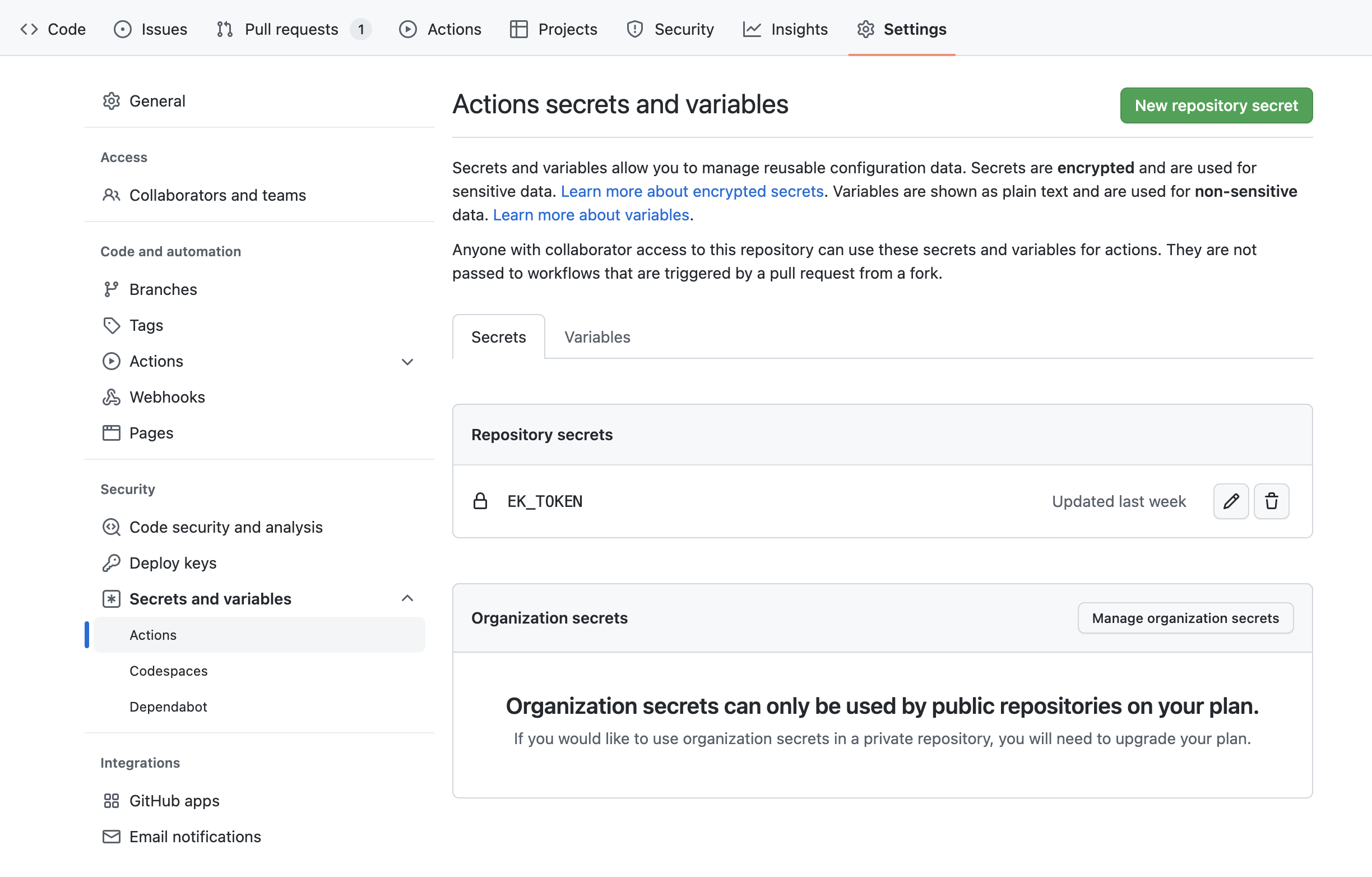 ## Grant write permissions to workflows [Section titled “Grant write permissions to workflows”](#grant-write-permissions-to-workflows) To enable the EkLine GitHub Action to add comments to pull requests, you must grant write permissions to workflows. There are two ways to achieve this: ### Option 1: Through repository settings [Section titled “Option 1: Through repository settings”](#option-1-through-repository-settings) 1. Navigate to **Settings > Code and Automation > Actions > General > Workflow permissions**. 2. Click the drop-down menu and select **Read and write permissions**. 3. Click **Save** to apply the changes. 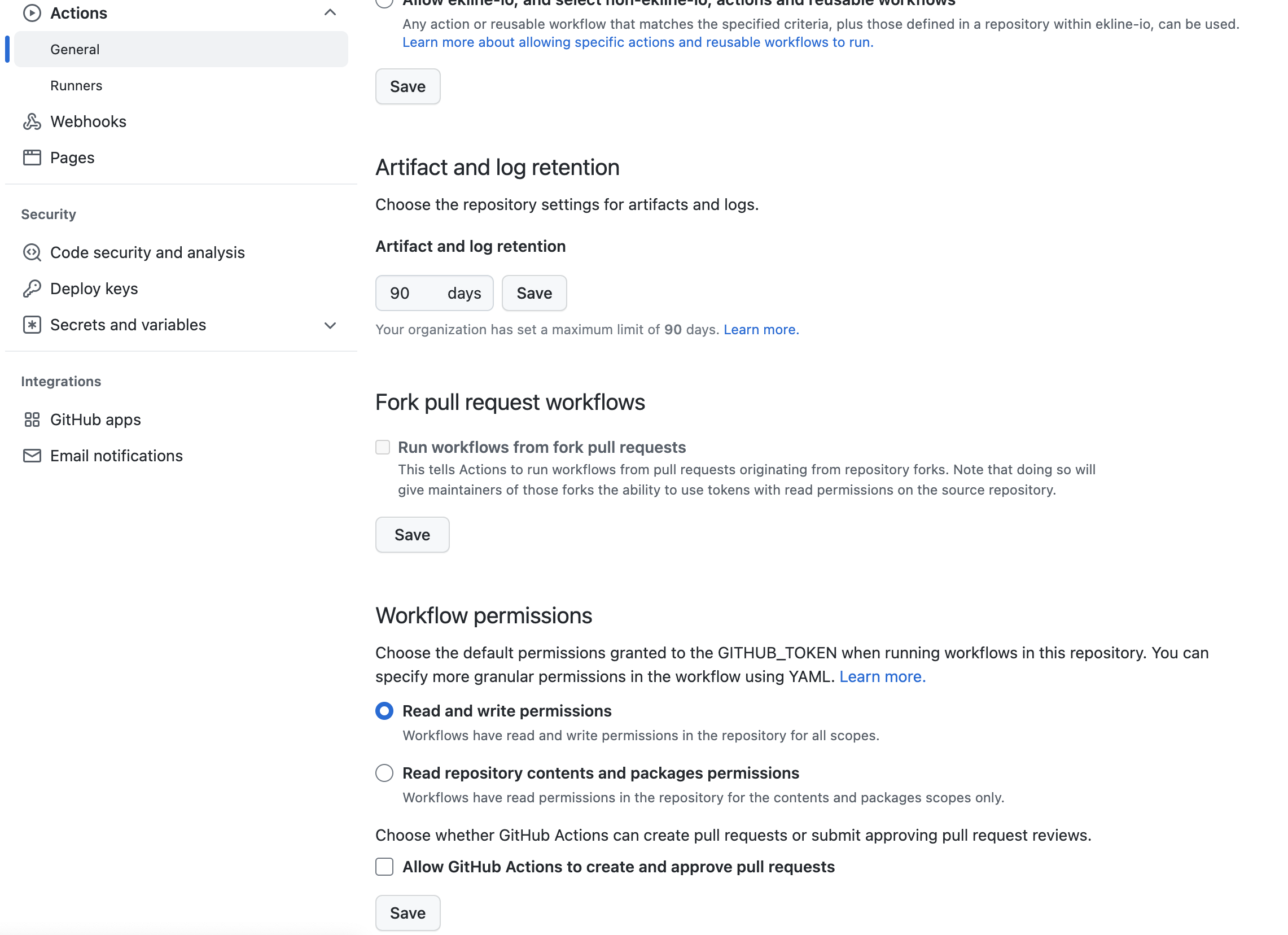 ### Option 2: Through the workflow file [Section titled “Option 2: Through the workflow file”](#option-2-through-the-workflow-file) Add the following permissions block to your workflow file: ```yaml permissions: contents: read pull-requests: write ``` ## Check the EkLine GitHub Action results [Section titled “Check the EkLine GitHub Action results”](#check-the-ekline-github-action-results) Once the EkLine GitHub Action runs, you can view the results in the “Actions” tab of your repository. ## Other options [Section titled “Other options”](#other-options) [EkLine GitHub Action on Label](/reviewer/integrations/github-action-label)
# EkLine Docs Reviewer GitLab integration
> Automate documentation review in GitLab Merge Requests using the EkLine CI/CD pipeline.
## Prerequisites [Section titled “Prerequisites”](#prerequisites) * **EkLine Integration Token:** Get it from **Settings > Organization > Access** in the **[EkLine Dashboard](https://ekline.io/dashboard)**. * **GitLab Project:** Admin access to configure CI/CD variables. ## Quick start [Section titled “Quick start”](#quick-start) Create or update the `.gitlab-ci.yml` file in your project root with this configuration: ```yaml stages: - ekline-pr-review ekline-pr-review-job: stage: ekline-pr-review image: ghcr.io/ekline-io/ekline-ci-cd:v6 interruptible: true rules: - if: '$CI_PIPELINE_SOURCE == "merge_request_event"' script: - echo "Running EkLine" variables: INPUT_EK_TOKEN: $EK_TOKEN INPUT_GITLAB_TOKEN: $GITLAB_API_TOKEN INPUT_CONTENT_DIR: '' INPUT_REPORTER: 'gitlab-mr-discussion' INPUT_FILTER_MODE: 'added' # INPUT_IGNORE_RULE: "EK00001,EK00004" # Optional # INPUT_EXCLUDE_DIRECTORIES: "docs/archive" # Optional: one per line for multiple # INPUT_EXCLUDE_FILES: "README.md" # Optional: one per line for multiple ``` Replace **``** with the actual path to your content directory. ## Use an interruptible pipeline [Section titled “Use an interruptible pipeline”](#use-an-interruptible-pipeline) The configuration above includes `interruptible: true` on the review job. This setting cancels a running EkLine review when you push a new commit to the same merge request. Without it, several review jobs can run at once on the same merge request. That wastes CI/CD minutes and can post duplicate or outdated comments. > **Tip**: Combine `interruptible: true` with the GitLab project setting **Auto-cancel redundant pipelines** (under **Settings > CI/CD > General pipelines**) so only the latest pipeline runs for each merge request. ## Configure GitLab API token [Section titled “Configure GitLab API token”](#configure-gitlab-api-token) 1. In GitLab, go to Settings > Access tokens. 2. Create a token with API access. 3. Add the token to your project’s CI/CD > Variables as **`GITLAB_API_TOKEN`**. ## Configure EkLine integration token [Section titled “Configure EkLine integration token”](#configure-ekline-integration-token) 1. Copy your integration token from **Settings > Organization > Access** in the [EkLine dashboard](https://ekline.io/dashboard). 2. Add the token to your project’s CI/CD > Variables as **`EK_TOKEN`**. ## Configure input reporter (optional) [Section titled “Configure input reporter (optional)”](#configure-input-reporter-optional) You can choose between two options for **`INPUT_REPORTER`**: * **`gitlab-mr-discussion`** (default): Reports results as merge request discussions. * **`gitlab-mr-commit`**: Reports results on each commit in the merge request. ## Configure input filter mode (optional) [Section titled “Configure input filter mode (optional)”](#configure-input-filter-mode-optional) The following options are available for **`INPUT_FILTER_MODE`**: * **added** default: Filter results by added or modified lines. * **`diff_context`**: Filter results by diff context. That’s changed lines +-N lines, such as N=3. * **`file`**: Filter results by added or modified file. EkLine reports results in those files, even outside the diff. * **`nofilter`**: Don’t filter any results. Useful for posting results as comments as much as possible and checking other results in the console at the same time. ## Ignoring specific optional rules [Section titled “Ignoring specific optional rules”](#ignoring-specific-optional-rules) To skip specific rules, set `INPUT_IGNORE_RULE` to a comma-separated list of rule IDs. For example, to skip `EK00001` and `EK00004`: ```text INPUT_IGNORE_RULE: "EK00001,EK00004" ``` ## Block merges until docs pass [Section titled “Block merges until docs pass”](#block-merges-until-docs-pass) By default, EkLine posts its findings as merge request discussions without failing the job, so the merge request can still merge. To make the review a required gate: 1. Add `INPUT_REVIEWDOG_FLAGS` to the job’s `variables`, so the job fails when EkLine reports an issue at error severity: ```yaml variables: INPUT_REVIEWDOG_FLAGS: "-fail-level=error" ``` 2. In your GitLab project, open **Settings** > **Merge requests**. Under **Merge checks**, select **Pipelines must succeed**, then save your changes. ## Exclude specific content directories and files [Section titled “Exclude specific content directories and files”](#exclude-specific-content-directories-and-files) Set `INPUT_EXCLUDE_DIRECTORIES` and `INPUT_EXCLUDE_FILES` to skip directories and files. Put one path on each line. ## Example usages [Section titled “Example usages”](#example-usages) **Exclude directories and files:** ```yaml variables: INPUT_CONTENT_DIR: 'docs' INPUT_EXCLUDE_DIRECTORIES: |- docs/archive docs/drafts INPUT_EXCLUDE_FILES: |- README.md docs/legacy.md ``` **Exclude files only:** ```yaml variables: INPUT_EXCLUDE_FILES: |- README.md CONTRIBUTING.md ``` Save your changes and push the **`.gitlab-ci.yml`** file to your repository. EkLine then reviews your content directory and posts its feedback as merge request discussions. ## Next steps [Section titled “Next steps”](#next-steps) * [Ignoring rules](/reviewer/configuration/ignoring-rules/): handle false positives and suppress specific checks * [Framework support](/reviewer/configuration/framework-support/): configure EkLine for MDX, Astro, Docusaurus, and other frameworks * [Docs Agent](/agent/): generate and update documentation from your codebase with AI
# EkLine VS Code extension for documentation review
> Integrate EkLine directly into Visual Studio Code to enforce style guides, receive immediate feedback, and ensure documentation consistency.
## Prerequisites [Section titled “Prerequisites”](#prerequisites) Active EkLine account and Integration Token. > **Note:** Retrieve your token from **Settings > Organization > Access** in the **[EkLine Dashboard](https://ekline.io/dashboard)**. ## Supported file types [Section titled “Supported file types”](#supported-file-types) The extension works with the following file types: * Markdown (`.md`) * MDX (`.mdx`) * HTML (`.html`) * reStructuredText (`.rst`) * Plain text (`.txt`) * AsciiDoc (`.adoc`) ## Installation [Section titled “Installation”](#installation) Choose one of the following methods to install the extension. **Method 1: VS Code Marketplace (Recommended)** 1. Open **Visual Studio Code**. 2. Navigate to the **Extensions** view in the Activity Bar. 3. Search for `EkLine`. 4. Click **Install**. **Method 2: Web Browser** 1. Visit the **[EkLine Extension Page](https://marketplace.visualstudio.com/items?itemName=EkLine.ekline-vscode)**. 2. Click **Install**. ## Configuration [Section titled “Configuration”](#configuration) ### 1. Authentication [Section titled “1. Authentication”](#1-authentication) Upon installation, a prompt appears requesting your integration token. 1. Enter your **EkLine Integration Token**. 2. Press `Enter` to activate. *If you miss the prompt*: open the Command Palette (`Cmd/Ctrl` + `Shift` + `P`) and run `EkLine: Configure Extension`. ### 2. Workspace settings [Section titled “2. Workspace settings”](#2-workspace-settings) Access configuration via **Settings** > **Extensions** > **EkLine** or by editing your `.vscode/settings.json`. | Setting | Description | Default | | :-------------------------------------- | :----------------------------------------------------------------------------------------------------------------------------------------------------------------------------------------------------- | :------- | | **EkLine Token** | Your unique integration key. You can set it at the User or Workspace level. | N/A | | **Documentation Paths** | Array of directories to review relative to workspace root. Add paths in VS Code settings UI or as a JSON array in `settings.json`. | `["."]` | | **Style Guide** | Select the standard for review (Google, Microsoft, Marketing, or Custom). | `Google` | | **Review On Open** | Automatically review documents when they are opened. Disable to review only on demand or on save. | `true` | | **Review On Save** | Automatically review documents when they are saved. Disable to review only on demand or on open. | `true` | | **AI False Positive Filtering** | Use AI to filter likely false positives from style rule results. Disable for fully deterministic output across every scan. | `true` | | **Enable AI Rules For Repo Wide Scans** | Run AI rules when scanning the entire repository with **Review all documents**. AI rules are skipped by default on repo-wide scans because they are slower. Single-file scans always include AI rules. | `false` | | **Disabled** | Toggle to disable the extension without uninstalling it. | `false` | | **Debug** | Enable debug mode for troubleshooting. | `false` | ## Usage & commands [Section titled “Usage & commands”](#usage--commands) By default, EkLine reviews supported files automatically when you open or save them. You can disable either trigger with the **Review On Open** and **Review On Save** settings, or trigger reviews manually at any time. ### Core commands [Section titled “Core commands”](#core-commands) Access these via the Command Palette: `Cmd/Ctrl` + `Shift` + `P`. | Command | Function | | :---------------------------------------- | :------------------------------------------------------- | | `EkLine: Review all documents` | Analyzes all files in the configured paths. | | `EkLine: Review current document` | Analyzes only the active file. | | `EkLine: Improve writing in current file` | Triggers EkLine AI to enhance the active file’s content. | | `EkLine: Configure Extension` | Opens the token configuration prompt. | > **Note**: **Review all documents** skips AI rules by default to keep repo-wide scans fast. Single-file reviews always include AI rules. To enable AI rules on repo-wide scans, turn on the **Enable AI Rules For Repo Wide Scans** setting. ### Keyboard shortcuts [Section titled “Keyboard shortcuts”](#keyboard-shortcuts) | Shortcut | Context | Action | | :----------------------------------------------- | :--------------------------------- | :--------------------------------------------- | | `Cmd+Alt+E` (Mac) / `Ctrl+Alt+E` (Windows/Linux) | Text selected | Opens Ask EkLine with the selected text | | `Cmd+Alt+E` (Mac) / `Ctrl+Alt+E` (Windows/Linux) | No selection, cursor on empty line | Opens prompt to add content at cursor position | ### AI assistant (Ask EkLine) [Section titled “AI assistant (Ask EkLine)”](#ai-assistant-ask-ekline) Use the AI assistant to generate content or refactor existing text. Select text and right-click to choose **Improve with EkLine AI**. #### 1. Refactoring text [Section titled “1. Refactoring text”](#1-refactoring-text) 1. Highlight the text to improve. 2. Right-click and select **Improve with EkLine AI**. 3. Input your instruction and press `Enter`. 4. Review the Diff View and accept changes with `✓` or reject them with `✗`. #### 2. Generating content [Section titled “2. Generating content”](#2-generating-content) 1. Place cursor on an empty line. 2. Right-click and select **Improve with EkLine AI**. 3. Enter prompt to generate text at that location. #### 3. Contextual prompts [Section titled “3. Contextual prompts”](#3-contextual-prompts) Reference specific files to give the AI context: * **In Input Box:** Type `@` to open the file picker, choose **Workspace Files** or **External Files**, then select the files to reference. EkLine inserts the `@filename` references for you. * **In Editor:** Type `@ekline` followed by a prompt directly in the file. Click the appearing CodeLens to execute. ## EkLine suggestions panel [Section titled “EkLine suggestions panel”](#ekline-suggestions-panel) The extension adds an **EkLine** icon to the Activity Bar (left sidebar). Click it to open the **EkLine Suggestions** panel, which displays: * Real-time linting suggestions for the current file * AI assistant interface for quick improvements ## Diff view [Section titled “Diff view”](#diff-view) When EkLine AI suggests changes, they appear in a side-by-side diff view: * **Accept (`✓`)**: Click the checkmark button in the editor title bar to apply changes. * **Reject (`✗`)**: Click the X button to discard changes ## Troubleshooting [Section titled “Troubleshooting”](#troubleshooting) ### Symptoms [Section titled “Symptoms”](#symptoms) * [EkLine stops reviewing docs when I switch repositories](#ekline-stops-reviewing-docs-when-i-switch-repositories) * [Authentication errors despite entering my token](#authentication-errors-despite-entering-my-token) ### EkLine stops reviewing docs when I switch repositories [Section titled “EkLine stops reviewing docs when I switch repositories”](#ekline-stops-reviewing-docs-when-i-switch-repositories) User settings override Workspace settings for **Documentation Paths**. If you configure paths in your global User settings, those paths apply to all workspaces—ignoring workspace-specific settings. To use different Documentation Paths per repository: 1. Open Command Palette (`Cmd/Ctrl` + `Shift` + `P`). 2. Run **Preferences: Open User Settings (JSON)**. 3. Remove the `ekline-vscode.DocumentationPaths` line if present. 4. Save and close User settings. 5. Open Command Palette and run **Preferences: Open Workspace Settings (JSON)**. 6. Add the Documentation Paths for this repository: ```json { "ekline-vscode.DocumentationPaths": ["docs"] } ``` 7. Repeat steps 5-6 for each repository, using the correct paths for that project. > **Note:** This precedence behavior applies only to Documentation Paths. Other settings like EkLine Token use workspace-first precedence. ### Authentication errors despite entering my token [Section titled “Authentication errors despite entering my token”](#authentication-errors-despite-entering-my-token) The extension reads the token from these sources in order: 1. Workspace settings (`.vscode/settings.json`) 2. User settings (global) 3. Environment variable (`EKLINE_EK_TOKEN`) If you have the token in multiple locations with different values, the extension uses the first one found. To verify which source is active, enable **Debug** mode in settings and check the Output panel for EkLine logs. ## Next steps [Section titled “Next steps”](#next-steps) * [Ignoring rules](/reviewer/configuration/ignoring-rules/) — handle false positives and suppress specific checks * [Framework support](/reviewer/configuration/framework-support/) — configure EkLine for MDX, Astro, Docusaurus, and other frameworks * [CLI integration](/reviewer/integrations/cli-integration/) — run reviews from the command line or in CI pipelines * [Docs Agent](/agent/) — generate and update documentation from your codebase with AI
# Set up EkLine Docs Reviewer with the CLI
> Run documentation checks from the command line. Takes about 3 minutes.
Run checks locally before pushing, or integrate into any CI/CD pipeline. You get results in seconds without waiting for a PR. 1. **Install the CLI** Download the EkLine binary for your operating system: * macOS ```bash # On Intel Macs, use ekline-cli-macos-x64.zip curl -L -o ekline-cli-macos-arm64.zip https://github.com/ekline-io/ekline-cli-binaries/releases/latest/download/ekline-cli-macos-arm64.zip unzip ekline-cli-macos-arm64.zip chmod +x ekline-cli-macos sudo mv ekline-cli-macos /usr/local/bin/ekline-cli ``` * Linux ```bash curl -L -o ekline-cli https://github.com/ekline-io/ekline-cli-binaries/releases/latest/download/ekline-cli-linux chmod +x ekline-cli sudo mv ekline-cli /usr/local/bin/ ``` * Windows Download `ekline-cli-win.exe` from the [Release Page](https://github.com/ekline-io/ekline-cli-binaries/releases/latest) and add the folder that contains it to your PATH. 2. **Copy your token** Go to **Settings > Organization > Access** in the [EkLine Dashboard](https://ekline.io/dashboard) and copy your integration token. 3. **Run your first review** Point EkLine at your docs folder: ```bash ekline-cli --ek-token $EK_TOKEN --content-directory ./docs ``` ## That’s it [Section titled “That’s it”](#thats-it) EkLine prints issues directly in your terminal: ```text File: docs/quickstart.md Line:Column Severity Message Trigger Rule Id 12:1 warning Where possible, do not structure sentences in will be EK00005 future tense. Use present tense instead. File: docs/api.md Line:Column Severity Message Trigger Rule Id 34:5 error 'API Reference Guide' should use sentence-style API Reference EK00037 capitalization. Guide ``` *** ## Save your settings [Section titled “Save your settings”](#save-your-settings) Create an `ekline.config.json` in your project root so your team shares the same configuration: ```json { "contentDirectory": ["docs"], "styleGuide": "google" } ``` Then run without repeating flags: ```bash ekline-cli --ek-token $EK_TOKEN ``` *** ## Stuck? [Section titled “Stuck?”](#stuck) Reply to your welcome email or contact . We read every message. ## Want more control? [Section titled “Want more control?”](#want-more-control) * [Create a shared config file](/reviewer/integrations/cli-integration/#configuration-file) * [Ignore specific rules](/reviewer/configuration/ignoring-rules/) * [Enable framework support](/reviewer/integrations/cli-integration/#framework-support) * [Full CLI reference →](/reviewer/integrations/cli-integration/)
# EkLine Docs Reviewer quickstart for GitHub
> Set up automated documentation review in your GitHub repository in under 5 minutes.
EkLine’s Docs Reviewer catches style, grammar, and terminology issues in your docs before they merge. Setup takes under 5 minutes. ## What you get [Section titled “What you get”](#what-you-get) * Automated docs review on every pull request * Inline comments pointing to specific issues * Style guide enforcement (Google, Microsoft, or custom) * Merge blocking for critical violations 1. **Get your EkLine token** Sign up at [ekline.io](https://ekline.io). If you sign up with an email and password, first open the verification link that EkLine emails you. Then copy your integration token from **Settings > Organization > Access** in the [Dashboard](https://ekline.io/dashboard). 2. **Add the token to your repository** Go to your GitHub repository: **Settings → Secrets and variables → Actions → New repository secret** * Name: `EK_TOKEN` * Value: *paste your token* 3. **Create the workflow file** Create `.github/workflows/ekline.yml` in your repository: ```yaml name: EkLine Docs Review on: pull_request: jobs: review-docs: runs-on: ubuntu-latest permissions: contents: read pull-requests: write steps: - uses: actions/checkout@v4 - uses: ekline-io/ekline-github-action@v6 with: content_dir: ./docs ek_token: ${{ secrets.EK_TOKEN }} github_token: ${{ secrets.GITHUB_TOKEN }} reporter: github-pr-review ``` 4. **Open a Pull Request** Commit the workflow file and open a PR that changes your docs. EkLine reviews it and comments on any issues. ## You’re done [Section titled “You’re done”](#youre-done) EkLine now reviews your docs on every PR. You see inline comments like: > **EK00031**: In general, use active voice instead of passive voice (‘is loaded’). “The configuration is loaded” → “Load the configuration” ## Next steps [Section titled “Next steps”](#next-steps) * [Configure filter modes](/reviewer/integrations/github-integration/#filter-modes) to control what gets reviewed * [Ignore specific rules](/reviewer/integrations/github-integration/#ignoring-specific-rules) that don’t apply to your project * [Set up GitLab](/reviewer/integrations/gitlab-integration/) or [Bitbucket](/reviewer/integrations/bitbucket-integration/) instead ## Common configurations [Section titled “Common configurations”](#common-configurations) ### Review only changed lines (default) [Section titled “Review only changed lines (default)”](#review-only-changed-lines-default) ```yaml filter_mode: added ``` ### Review entire changed files [Section titled “Review entire changed files”](#review-entire-changed-files) ```yaml filter_mode: file ``` ### Exclude directories [Section titled “Exclude directories”](#exclude-directories) ```yaml exclude_directories: | node_modules tests vendor ``` See the full [GitHub Integration guide](/reviewer/integrations/github-integration/) for all options.
# Set up EkLine Docs Reviewer as a GitHub Action
> Set up the EkLine Docs Reviewer GitHub Action to automatically review documentation and enforce your style guide on every pull request.
Set up the Docs Reviewer GitHub Action so every pull request gets a docs review. ## Before you begin [Section titled “Before you begin”](#before-you-begin) * An EkLine account, with access to the [EkLine Dashboard](https://ekline.io/dashboard). * A GitHub repository where you can add repository secrets and workflow files. 1. **Copy your token** Go to **Settings** > **Organization** > **Access** in the [EkLine Dashboard](https://ekline.io/dashboard) and copy your integration token. 2. **Add it to GitHub** In your repository, go to **Settings** > **Secrets and variables** > **Actions** and click **New repository secret**. | Field | Value | | ------ | ------------ | | Name | `EK_TOKEN` | | Secret | *your token* | 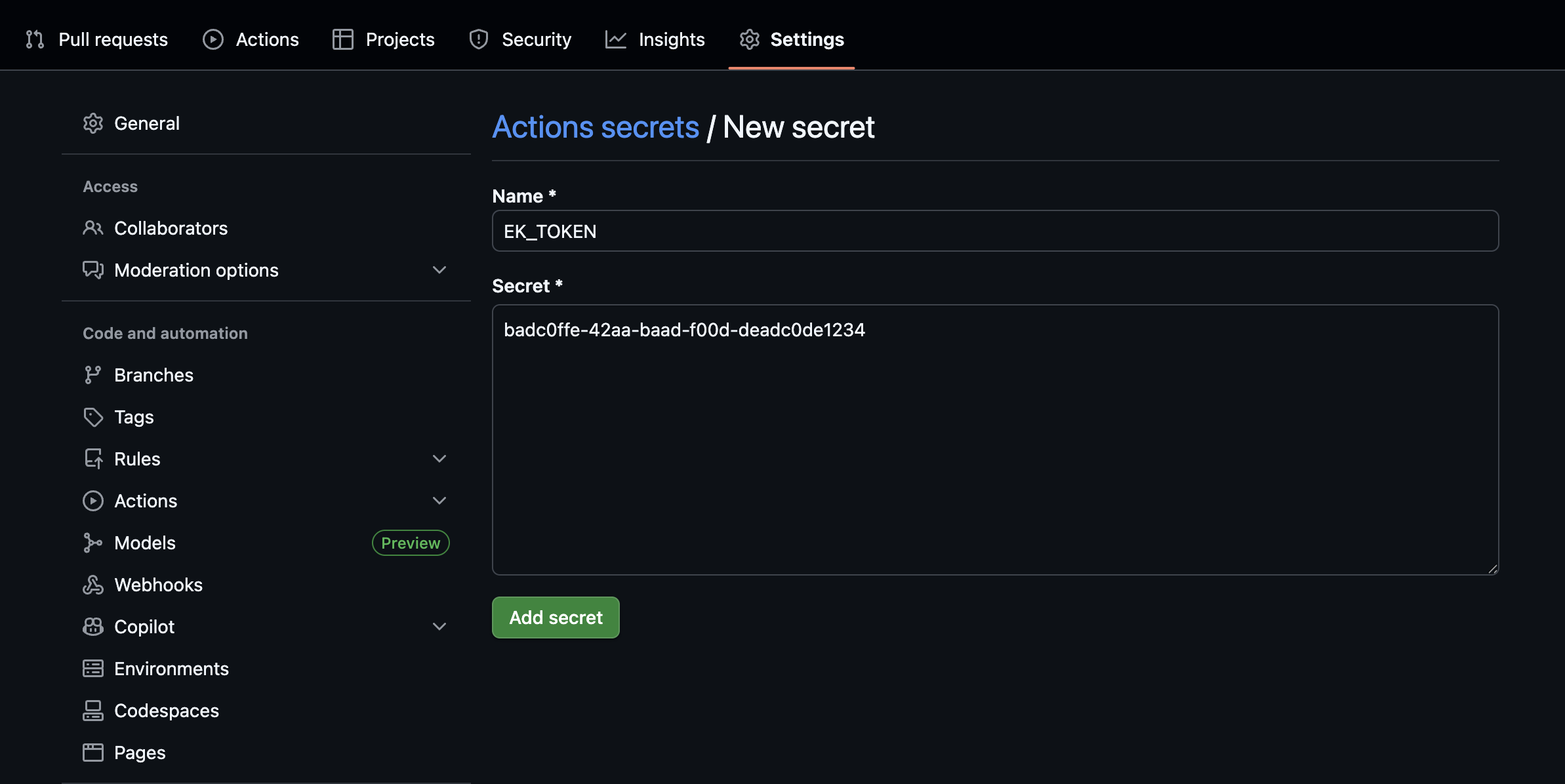 3. **Create the workflow**. Go to **Actions** > **New workflow** > **set up a workflow yourself**. Add this file to your repo at `.github/workflows/ekline.yml`: ```yaml name: EkLine on: [pull_request] jobs: docs: runs-on: ubuntu-latest permissions: contents: read pull-requests: write steps: - uses: actions/checkout@v4 - uses: ekline-io/ekline-github-action@v6 with: content_dir: . ek_token: ${{ secrets.EK_TOKEN }} github_token: ${{ secrets.GITHUB_TOKEN }} reporter: github-pr-review ``` 4. **Open a PR** Commit the workflow and open a pull request. EkLine reviews it automatically. ## That’s it [Section titled “That’s it”](#thats-it) You can see inline comments on your PR like: > **EK00005**: Where possible, don’t structure sentences in future tense. Use present tense instead. 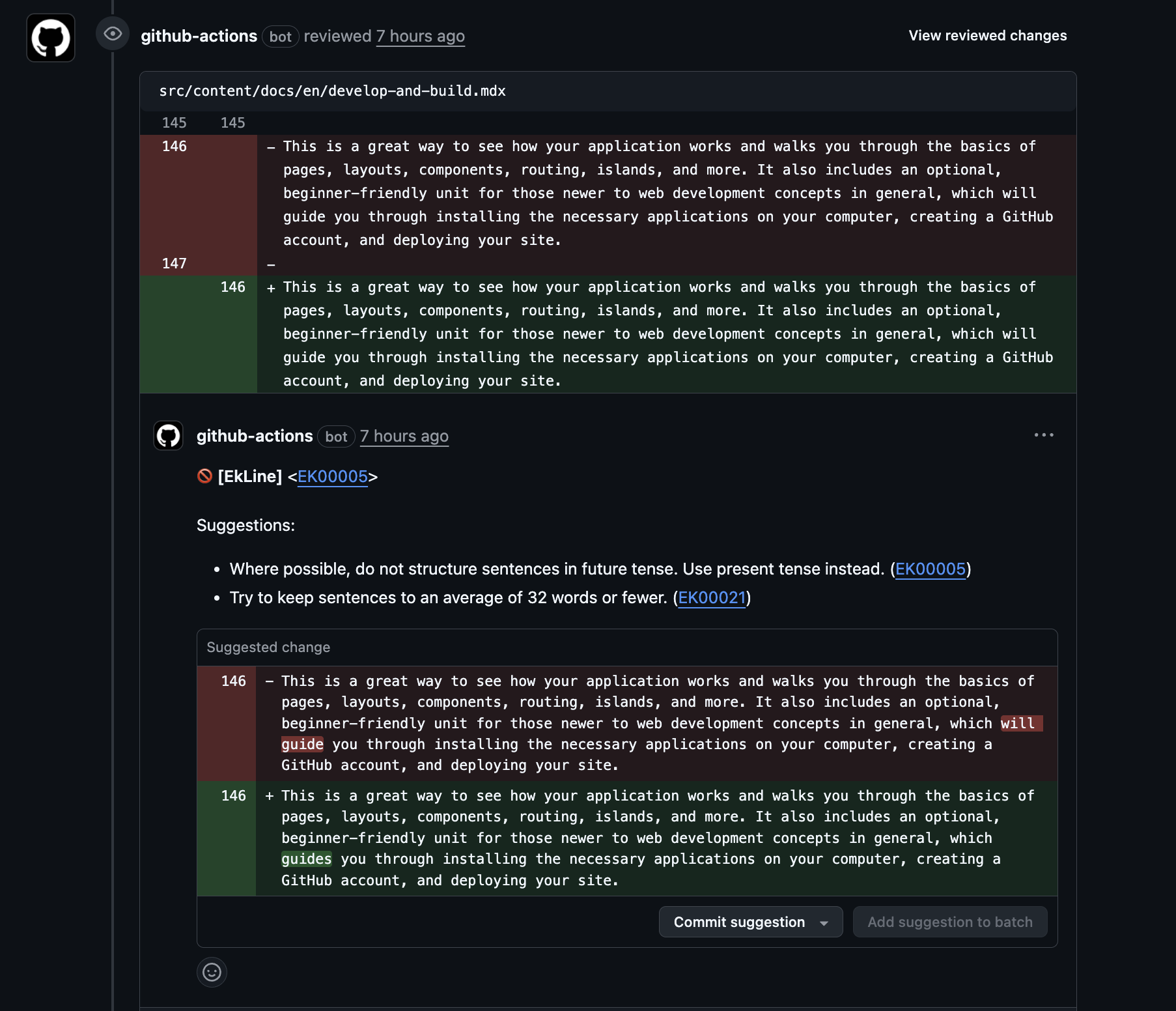 *** ## Stuck? [Section titled “Stuck?”](#stuck) Reply to your welcome email or contact . We read every message. ## Want more control? [Section titled “Want more control?”](#want-more-control) * [Filter what gets reviewed](/reviewer/integrations/github-integration/#filter-modes) * [Ignore specific rules](/reviewer/integrations/github-integration/#ignoring-specific-rules) * [Use a custom style guide](/reviewer/integrations/github-integration/#configuration-options) * [Full GitHub reference →](/reviewer/integrations/github-integration/)
# Set up EkLine Docs Reviewer for Google Docs
> Review docs outside your repo. Takes about 3 minutes.
Review documentation that lives outside your codebase, such as specs, proposals, and wiki pages. 1. **Install the add-on** Open [Chrome Web Store](https://chromewebstore.google.com/detail/ekline-automate-content-c/gbcieddanknfnojfjnofajkgeengkiim) and search for **EkLine**. Click **Install** and grant the required permissions. 2. **Open a document** Open any Google Doc you want to review. 3. **Run EkLine** Go to **Extensions → EkLine → Sign In**. Once signed in, the reviewer starts the review. ## That’s it [Section titled “That’s it”](#thats-it) Issues appear as a list in the EkLine extension. Open an issue to see the suggested change, and click **Accept** to apply it to the document: > **EK00031**: In general, use active voice instead of passive voice (‘is saved’). “The file is saved” → “Save the file” *** ## When to use Google Docs [Section titled “When to use Google Docs”](#when-to-use-google-docs) | Use case | Best tool | | ------------------------------------- | ----------------------------------------------------------------------------------------------- | | README, API docs, guides in your repo | [GitHub Action](/reviewer/quickstart/github-action/) or [VS Code](/reviewer/quickstart/vscode/) | | Product specs, PRDs, proposals | **Google Docs** | | Wiki pages, Notion exports | **Google Docs** | | Drafts before committing to repo | **Google Docs** | *** ## Stuck? [Section titled “Stuck?”](#stuck) Reply to your welcome email or contact . We read every message.
# Set up EkLine Docs Reviewer in VS Code
> Get real-time feedback as you write. Takes about 3 minutes.
Real-time feedback as you write. Issues appear instantly. You don’t need to wait for CI. 1. **Install the extension** Open VS Code and press `Cmd+Shift+X` (Mac) or `Ctrl+Shift+X` (Windows/Linux). Search for **EkLine** and click **Install**. Or [install from the marketplace →](https://marketplace.visualstudio.com/items?itemName=EkLine.ekline-vscode) 2. **Enter your token** A prompt appears after installation. Paste your token from **Settings > Organization > Access** in the [EkLine Dashboard](https://ekline.io/dashboard). 3. **Open a doc file** Open any supported file. EkLine highlights issues automatically. **Supported file types:** Markdown (`.md`), MDX (`.mdx`), HTML (`.html`), reStructuredText (`.rst`), Plain text (`.txt`), AsciiDoc (`.adoc`) ## That’s it [Section titled “That’s it”](#thats-it) Issues appear as you type. Hover over highlights to see suggestions: > ‘Docs Reviewer — Quality assurance for docs’ should use sentence-style capitalization. EkLine(EK00037) 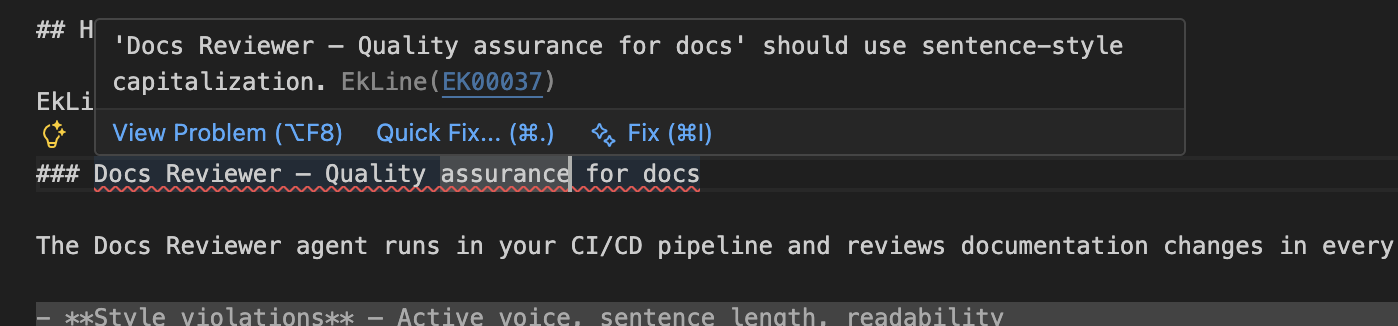 *** ## Quick commands [Section titled “Quick commands”](#quick-commands) Press `Cmd+Shift+P` (Mac) or `Ctrl+Shift+P` (Windows/Linux): | Command | What it does | | ----------------------------------------- | -------------------------------- | | `EkLine: Review current document` | Check the open file | | `EkLine: Review all documents` | Check all docs in your workspace | | `EkLine: Improve writing in current file` | AI rewrites the current file | ## AI assistant [Section titled “AI assistant”](#ai-assistant) Select text and right-click to choose **Improve with EkLine AI**. **Keyboard shortcut:** `Cmd+Alt+E` on Mac or `Ctrl+Alt+E` on Windows or Linux opens the AI assistant with your selection. *** ## Stuck? [Section titled “Stuck?”](#stuck) Reply to your welcome email or contact . We read every message. ## Resources [Section titled “Resources”](#resources) * [Full VS Code Extension guide](/reviewer/integrations/vscode-integration)
# Style-guide enforcement for GitHub pull requests
> EkLine is a complete style-guide enforcement tool for GitHub pull requests: bundled rules, inline PR review, and merge-blocking checks, no linter to assemble.
EkLine is a complete, standalone tool for enforcing a style guide on every GitHub pull request. It reviews your documentation changes, posts the issues inline on the PR, and can block the merge until they’re resolved. You install one GitHub Action, add one token, and EkLine handles the rest. You don’t assemble a linter, wire up an output adapter, or hand-write rule files. The rules, the style guides, the AI review, the link checking, and the inline PR comments all ship in the product. [Set up your first PR review ](/reviewer/quickstart/github-action/)Add the GitHub Action and run a review in about 3 minutes. ## What EkLine enforces out of the box [Section titled “What EkLine enforces out of the box”](#what-ekline-enforces-out-of-the-box) Every PR review checks your prose against a full style guide, not a handful of regular expression rules you maintain yourself: * **Style guides** — Choose Google, Microsoft, or Marketing, or build a custom standard from your own rules. Set it once and every PR uses it. * **Grammar and spelling** — Typos, punctuation, and syntax, with a project dictionary for your product names and jargon. * **Voice and tone** — Active voice, present tense, sentence length, and readability. * **Terminology** — Consistent product names and technical terms across the whole repository. * **Structure and links** — Heading hierarchy, plus broken-link and broken-email detection. Browse the [rules reference](/reviewer/rules) to see every rule EkLine enforces. ## Set it up on GitHub [Section titled “Set it up on GitHub”](#set-it-up-on-github) Two steps put EkLine on every pull request. For the full walkthrough, follow the [GitHub Action quickstart](/reviewer/quickstart/github-action). 1. Add your EkLine token as a repository secret named `EK_TOKEN`. Get the token from **Settings** > **Organization** > **Access** in the [EkLine Dashboard](https://ekline.io/dashboard). 2. Add this workflow at `.github/workflows/ekline.yml`: ```yaml name: EkLine on: [pull_request] jobs: docs: runs-on: ubuntu-latest permissions: contents: read pull-requests: write steps: - uses: actions/checkout@v4 - uses: ekline-io/ekline-github-action@v6 with: content_dir: . ek_token: ${{ secrets.EK_TOKEN }} github_token: ${{ secrets.GITHUB_TOKEN }} reporter: github-pr-review ``` Open a pull request and EkLine reviews it automatically, posting inline comments on the lines that break a rule. ## Configure your rules [Section titled “Configure your rules”](#configure-your-rules) EkLine reads its settings from an `ekline.config.json` file at your repository root. Commit it so every pull request and every teammate enforces the same standard: ekline.config.json ```json { "contentDirectory": ["docs"], "styleGuide": "google" } ``` * **Pick a style guide** with the `styleGuide` key. See [Choose and apply a style guide](/reviewer/configuration/style-guides). * **Disable rules that don’t fit your project** with the action’s `ignore_rule` input (for example, `ignore_rule: EK00001,EK00004`), or suppress a single line with an [inline ignore comment](/reviewer/configuration/ignoring-rules#inline-ignore-comments). * **Turn rules on or off and add terminology** for a custom standard. See [Rules](https://ekline.io/guidelines/rules). For a custom rule, contact . * **Accept product names and jargon** with a [project dictionary](/reviewer/configuration/dictionary) so spell-check leaves them alone. A built-in style guide uses EkLine’s shared rules. Your own rule settings, terminology, and dictionary apply only when you leave `styleGuide` unset. For more configuration keys, see the [configuration file reference](/reviewer/configuration/ignoring-rules). ## Block merges until docs pass [Section titled “Block merges until docs pass”](#block-merges-until-docs-pass) By default, EkLine posts its findings as comments without failing the check, so a pull request can still merge. To turn the review into a required gate: 1. Add `reviewdog_flags: -fail-level=error` to the action’s inputs, so the job fails when EkLine reports an issue at error severity: ```yaml - uses: ekline-io/ekline-github-action@v6 with: content_dir: . ek_token: ${{ secrets.EK_TOKEN }} github_token: ${{ secrets.GITHUB_TOKEN }} reporter: github-pr-review reviewdog_flags: -fail-level=error ``` 2. In your repository, go to **Settings** > **Branches** and add a branch protection rule for `main`. 3. Under **Require status checks to pass before merging**, select the check named after the workflow’s job: `docs` in the sample workflow. GitHub then prevents the merge until EkLine passes. See the [GitHub Actions integration reference](/reviewer/integrations/github-integration) for every reporter and filter option. ## EkLine compared to assembling Vale and reviewdog [Section titled “EkLine compared to assembling Vale and reviewdog”](#ekline-compared-to-assembling-vale-and-reviewdog) Teams that want style-guide enforcement on GitHub often reach for a do-it-yourself stack: the Vale linter, a set of hand-written rule files, and reviewdog to turn the output into inline PR comments. That works, but you own every piece of it. EkLine delivers the same outcome as a single managed tool. | Capability | EkLine | Vale + reviewdog (DIY) | | -------------------------- | ----------------------------------------------------------------- | --------------------------------------------------------- | | Style-guide rules | 60+ rules plus Google, Microsoft, and Marketing presets, built in | You install and maintain rule packages, or write your own | | Inline PR comments | Built in | You configure reviewdog separately | | Merge blocking | GitHub check you mark required | GitHub check you mark required | | AI suggestions | Built in | Not available | | Terminology and dictionary | Built in | You maintain vocabulary files | | Link and email checking | Built in | Separate tooling | | Setup | One token, one workflow file | Multiple tools to wire together and keep updated | | Maintenance | Managed by EkLine | You own upgrades and rule tuning | Choose EkLine when you want style-guide enforcement on every pull request without building and maintaining a review pipeline yourself. Choose the DIY stack when you need total control over each component and are ready to maintain it. ## Related [Section titled “Related”](#related) * [GitHub Action quickstart](/reviewer/quickstart/github-action) — Run your first PR review in about 3 minutes. * [GitHub Actions integration reference](/reviewer/integrations/github-integration) — Every reporter and filter mode, plus the main action inputs. * [Choose and apply a style guide](/reviewer/configuration/style-guides) — Pick the standard EkLine enforces. * [Configuration file reference](/reviewer/configuration/ignoring-rules) — The main `ekline.config.json` keys.